> ## Documentation Index
> Fetch the complete documentation index at: https://nango.dev/docs/llms.txt
> Use this file to discover all available pages before exploring further.
# Juniper Mist - How do I link my account?
# Overview
To authenticate with Juniper Mist, you will need:
1. **API Subdomain** - The API subdomain for your Juniper Mist region
2. **API Token** - Your Juniper Mist API token (personal or organization token) for authentication.
This guide will walk you through finding your API subdomain and generating your **API Token** within Juniper Mist. You can use either a **personal API token** (user token) or an **organization API token**:
* **Personal API tokens**: For individual user access
* **Organization API tokens**: For automated systems and service accounts
### Prerequisites:
* You must have a Juniper Mist account
### Instructions:
#### Step 1: Finding your API Subdomain
1. Log in to the [Juniper Mist portal](https://www.mist.com/).
2. Once logged in, check the address bar. Notice the first part of the URL, starting with the word `manage` and ending with `com`.
**Example**: `https://manage.ac2.mist.com/admin/?org_id=xxxxxxx-xxxx-xxx`
3. Your API endpoint is similar but starts with `api` instead of `manage`.
In the above example, the resulting API subdomain is `api.ac2`.
**Tip**: The portal URL also contains your organization ID. In the URL, the organization ID section starts with these characters: `org_id=`
**List of API Endpoint URLs by Region:**
| Region | Admin Portal | API Subdomain |
| --------- | ------------------- | ------------- |
| Global 01 | manage.mist.com | `api` |
| Global 02 | manage.gc1.mist.com | `api.gc1` |
| Global 03 | manage.ac2.mist.com | `api.ac2` |
| Global 04 | manage.gc2.mist.com | `api.gc2` |
| Global 05 | manage.gc4.mist.com | `api.gc4` |
| EMEA 01 | manage.eu.mist.com | `api.eu` |
| EMEA 02 | manage.gc3.mist.com | `api.gc3` |
| EMEA 03 | manage.ac6.mist.com | `api.ac6` |
| EMEA 04 | manage.gc6.mist.com | `api.gc6` |
| APAC 01 | manage.ac5.mist.com | `api.ac5` |
| APAC 02 | manage.gc5.mist.com | `api.gc5` |
| APAC 03 | manage.gc7.mist.com | `api.gc7` |
#### Step 2: Generating your API Token
Choose one of the following methods based on your needs:
**Option A: Generate a Personal API Token (User Token)**
1. Sign in to your [Juniper Mist portal](https://www.mist.com/).
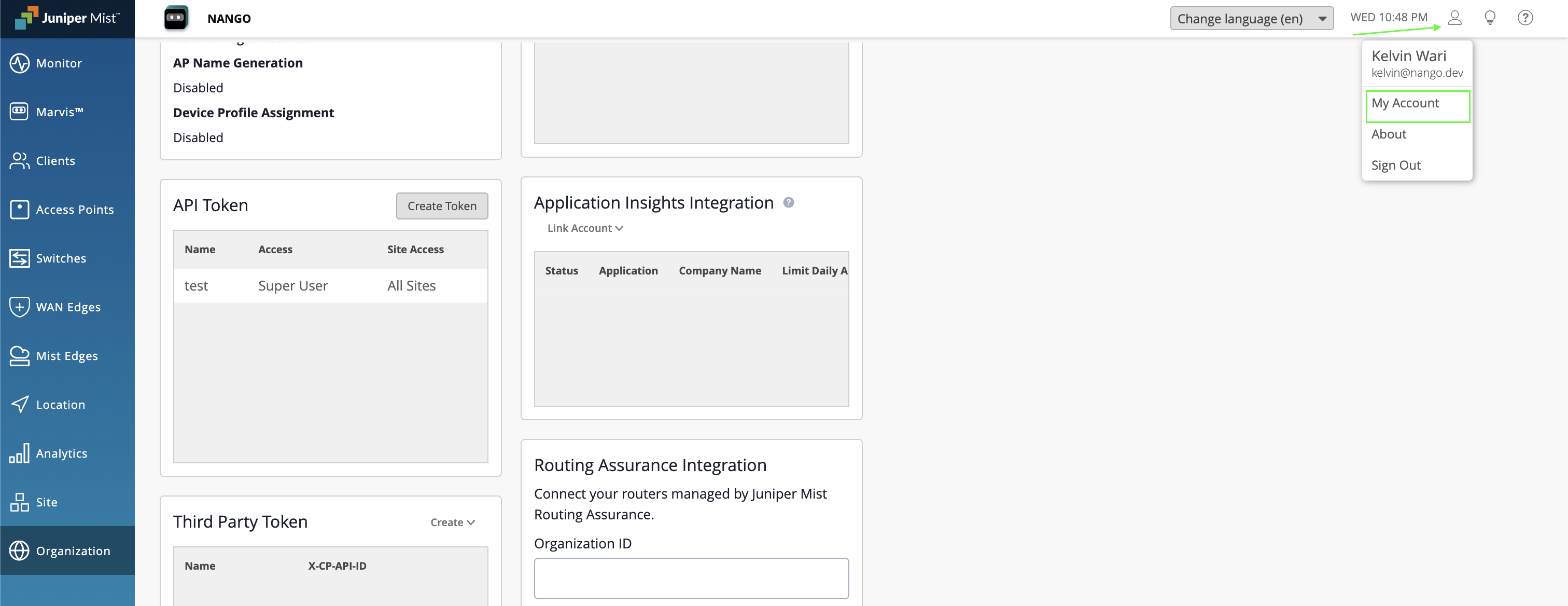
2. At the top-right corner, click the **Juniper Mist Account icon**, then click **My Account**.
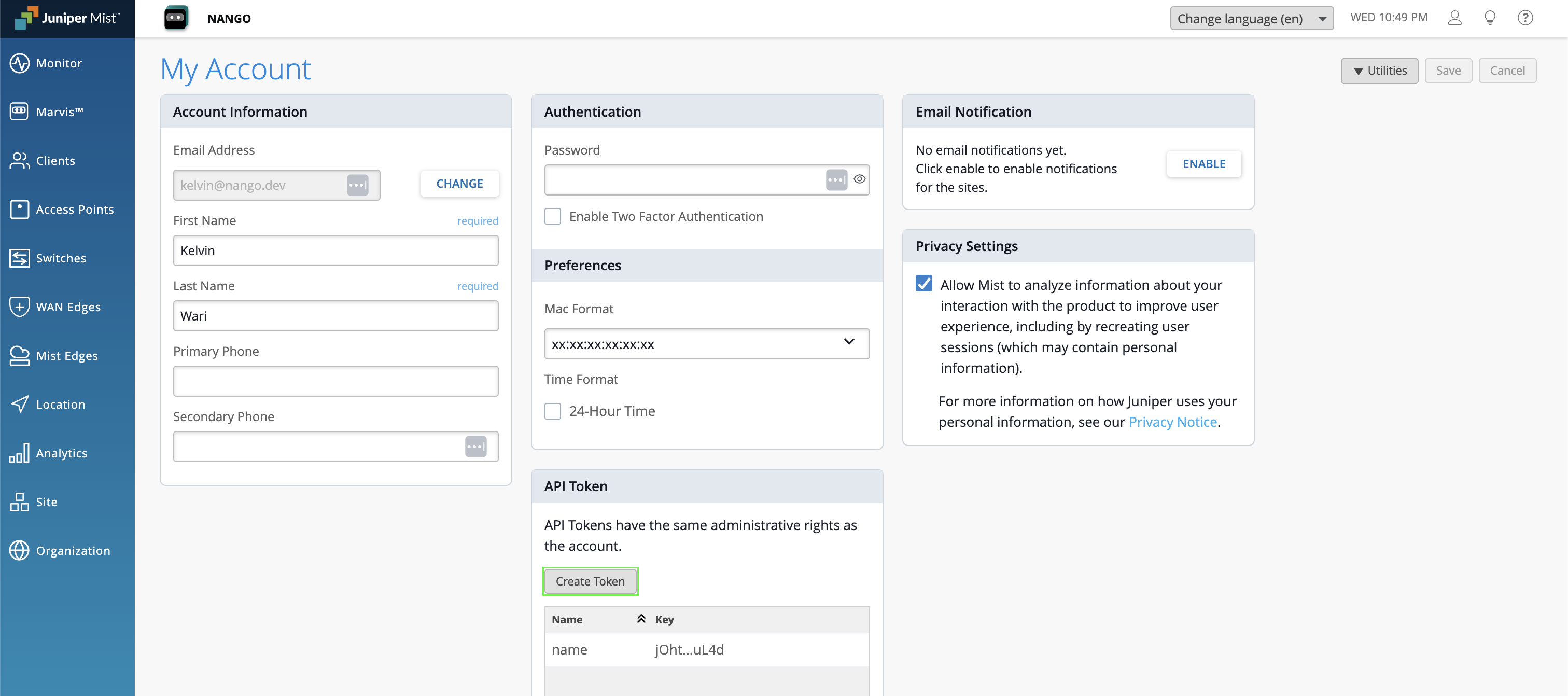
 3. In the **API Token** section, click **Create Token**.
* **Note**: If you have enabled single sign-on for your organization, you will not be able to create API user tokens.
3. In the **API Token** section, click **Create Token**.
* **Note**: If you have enabled single sign-on for your organization, you will not be able to create API user tokens.
 4. Enter a name for the token and click **Generate**.
5. Click the **copy button** next to the **Key** field to copy your token.
4. Enter a name for the token and click **Generate**.
5. Click the **copy button** next to the **Key** field to copy your token.
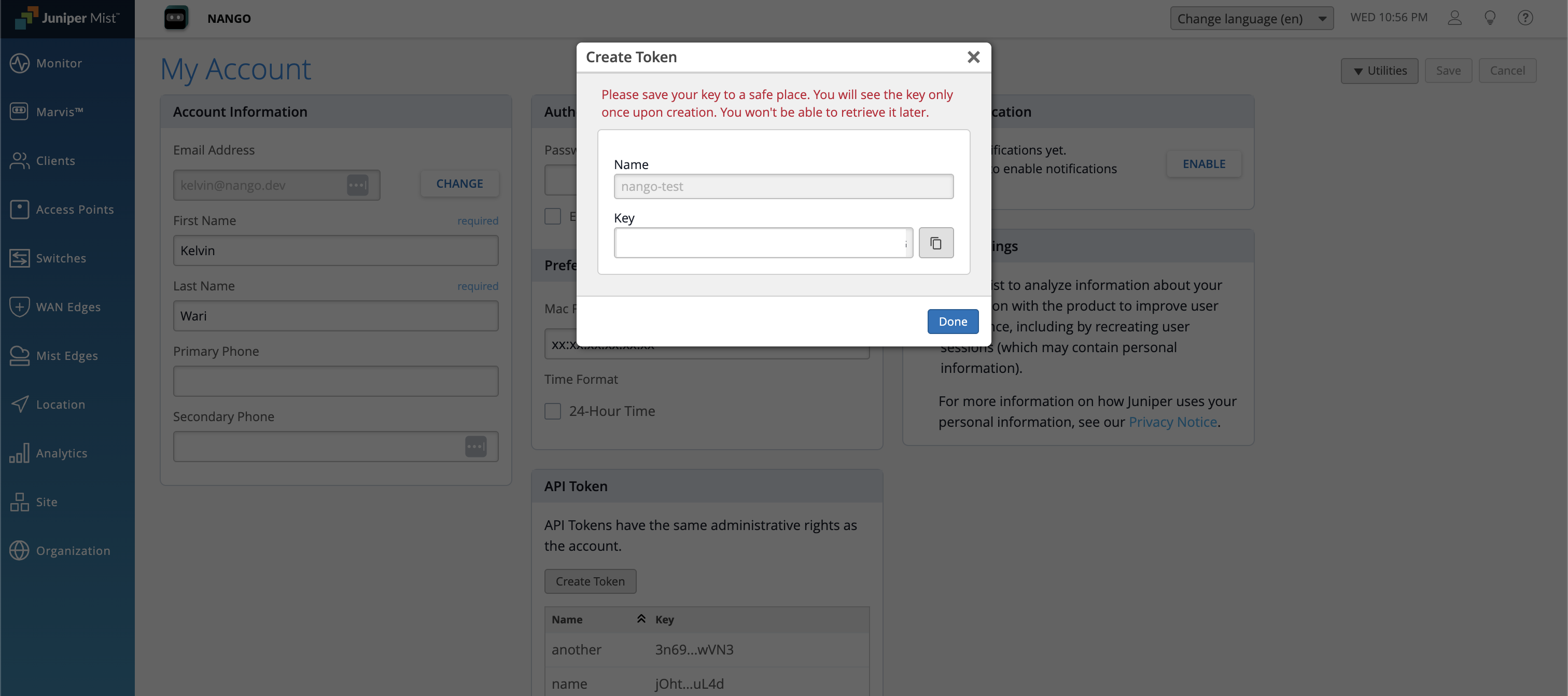 6. **Important**: Store the key somewhere safe as you will not be able to see the full key again. If you misplace the key, you'll need to create a new one.
7. Click **Done**.
**Option B: Generate an Organization API Token**
1. Sign in to your [Juniper Mist portal](https://www.mist.com/).
2. From the left menu, navigate to **Organization** > **Settings**.
6. **Important**: Store the key somewhere safe as you will not be able to see the full key again. If you misplace the key, you'll need to create a new one.
7. Click **Done**.
**Option B: Generate an Organization API Token**
1. Sign in to your [Juniper Mist portal](https://www.mist.com/).
2. From the left menu, navigate to **Organization** > **Settings**.
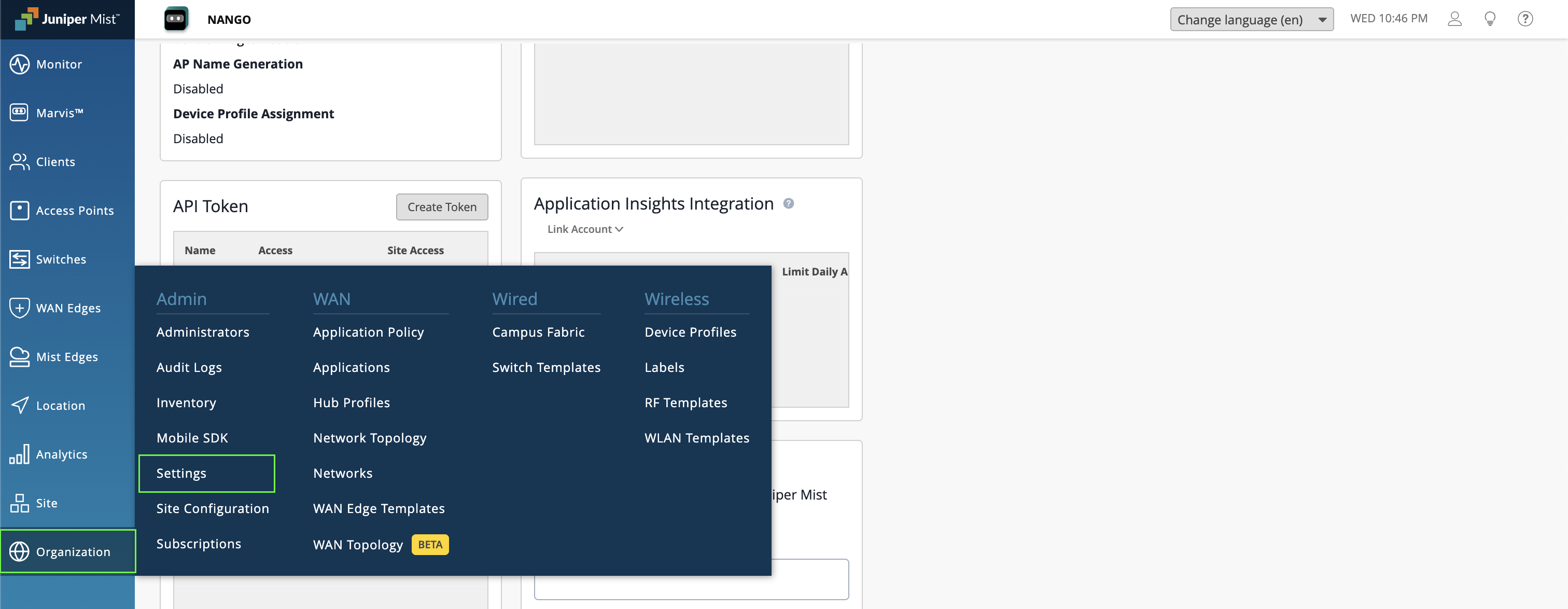 3. Scroll down to the **API Token** section and click **Create Token**.
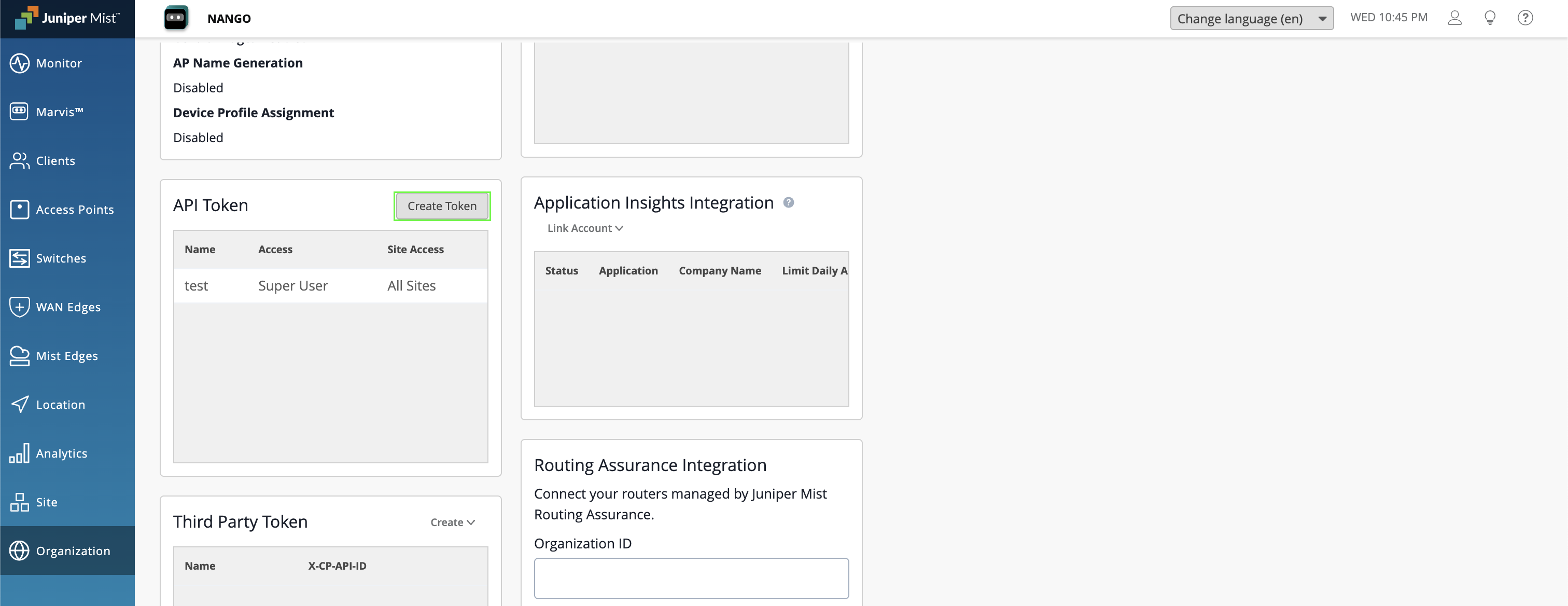 4. Define the permissions for the token.
5. Click **Generate**.
6. After clicking **Generate**, you will see a message at the top of the window reminding you to save your key.
7. Click the **copy button** next to the **Key** field to copy your token.
4. Define the permissions for the token.
5. Click **Generate**.
6. After clicking **Generate**, you will see a message at the top of the window reminding you to save your key.
7. Click the **copy button** next to the **Key** field to copy your token.
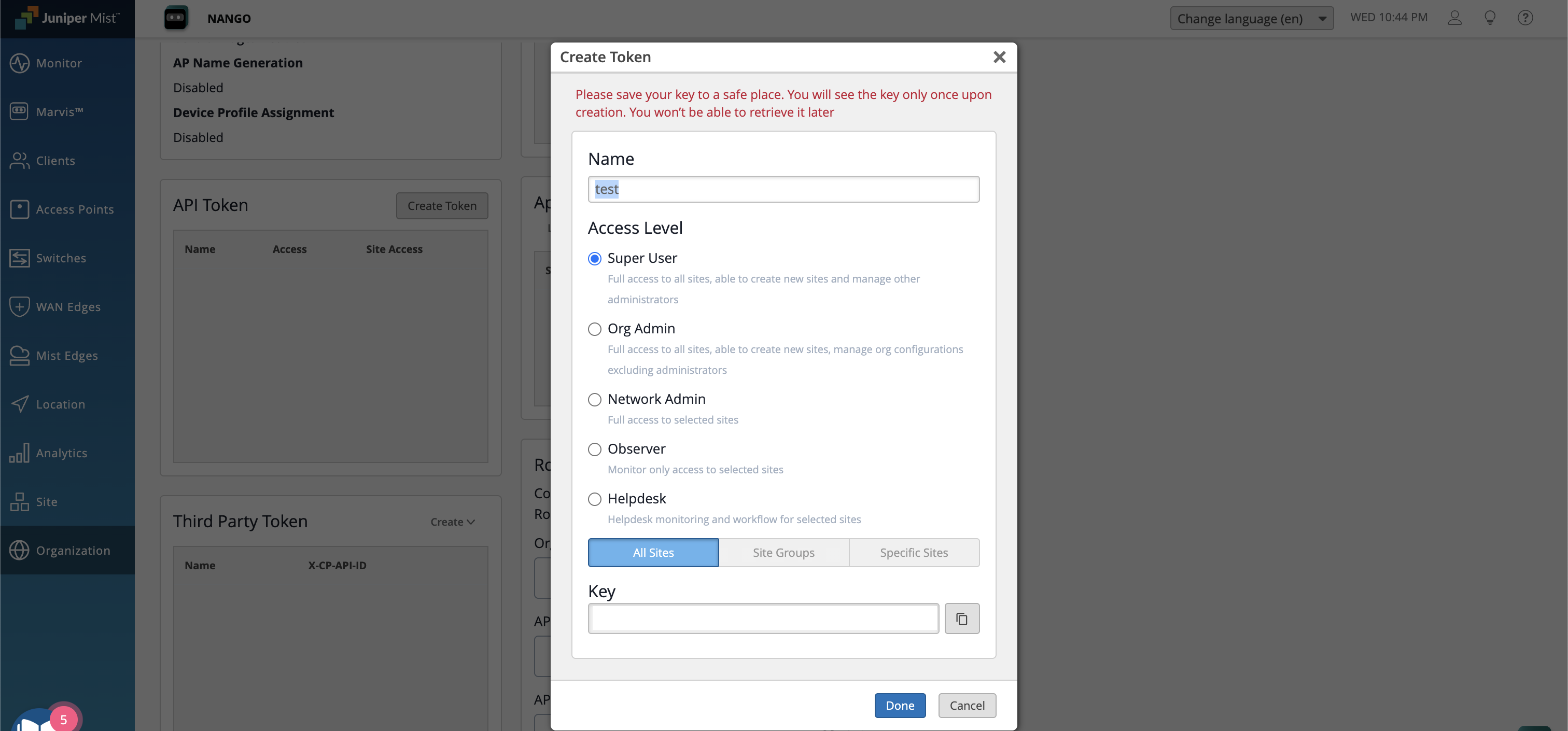 8. **Important**: Store the key somewhere safe. The only time you will see the entire, untruncated key is upon creation. You will not be able to see the full key ever again. If you misplace the key, you will have to create a new key.
9. Click **Done** at the bottom of the window.
10. Click **Save** near the top-right corner of the page.
#### Step 3: Enter credentials in the Connect UI
Once you have your **API Subdomain** and **API Token**:
1. Open the form where you need to authenticate with Juniper Mist.
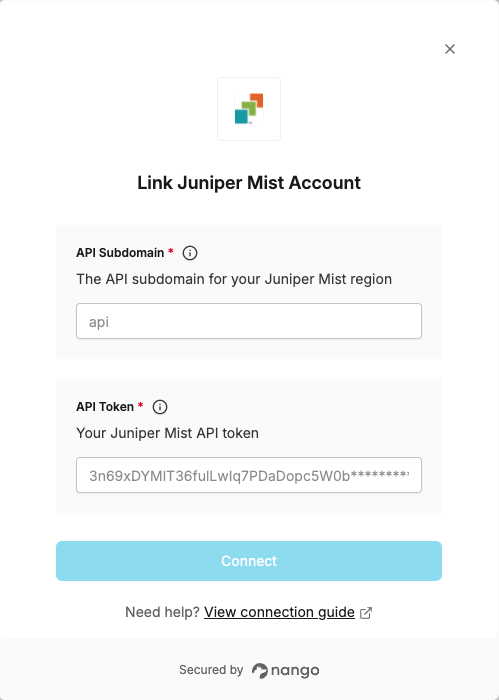
2. Enter your **API Subdomain** (e.g., `api`, `api.gc1`, `api.ac2`) in the respective field.
3. Enter your **API Token** in the respective field.
4. Submit the form, and you should be successfully authenticated.
8. **Important**: Store the key somewhere safe. The only time you will see the entire, untruncated key is upon creation. You will not be able to see the full key ever again. If you misplace the key, you will have to create a new key.
9. Click **Done** at the bottom of the window.
10. Click **Save** near the top-right corner of the page.
#### Step 3: Enter credentials in the Connect UI
Once you have your **API Subdomain** and **API Token**:
1. Open the form where you need to authenticate with Juniper Mist.
2. Enter your **API Subdomain** (e.g., `api`, `api.gc1`, `api.ac2`) in the respective field.
3. Enter your **API Token** in the respective field.
4. Submit the form, and you should be successfully authenticated.
 You are now connected to Juniper Mist.