> ## Documentation Index
> Fetch the complete documentation index at: https://nango.dev/docs/llms.txt
> Use this file to discover all available pages before exploring further.
# Gong (Basic Auth) - How do I link my account?
## Overview
To authenticate with Gong, you need:
1. **Access Key** — Your Gong Access Key.
2. **Access Key Secret** — Your Gong Access Key Secret.
This guide will walk you through finding those credentials in Gong.
### Prerequisites
* A **Technical Admin** role in Gong — only Technical Admins can create API keys.
* Available on any Gong plan; no specific paid tier is required.
### Step 1: Find your API key and API key secret
1. From the left sidebar, click **Admin center**.
2. In the **Settings** tab, click **API** under **Ecosystem**.
3. Click **+ Get API key**.
4. Enter a name for the key in the **Key name** field.
5. Enter the number of days until the key expires in the **TTL (days)** field. Leave this field empty if the key should not expire.
6. Optionally, enter the IP addresses, CIDR blocks, or IP ranges to allow in the **Trusted IPs** field. Separate entries with line breaks or spaces. IPv4 and IPv6 are supported. See [Nango's public IP addresses](/docs/guides/platform/security#ip-allowlist) if you restrict this, since Nango's proxy will be making the calls.
If you leave this field empty, the key can be used from any network location.
7. Click **Get API key**. The access key and secret are displayed.
8. Copy the access key and secret to be used later — the secret can't be retrieved once you close the dialog box.
9. Click **Done**.
The API key is generated and added to the list of keys displayed in the **API keys** tab.
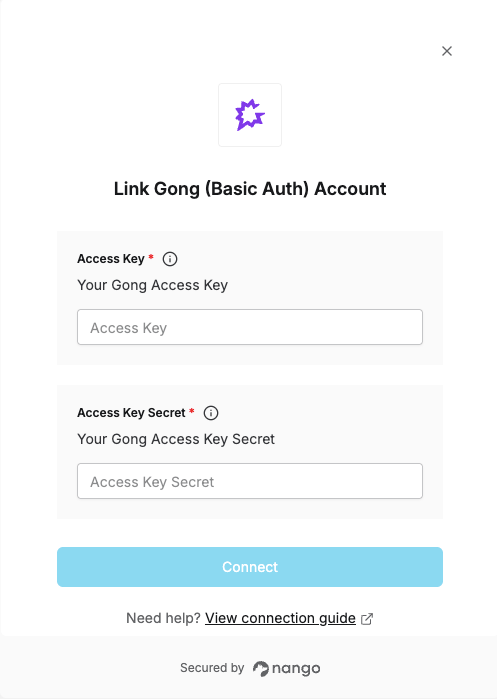
### Step 2: Enter credentials in the Connect UI
Once you have your Access Key and Access Key Secret:
1. Open the form where you need to authenticate with Gong.
2. Enter your **Access Key** as the username and your **Access Key Secret** as the password.
3. Submit the form, and you should be successfully authenticated.
 You are now connected to Gong.