> ## Documentation Index
> Fetch the complete documentation index at: https://nango.dev/docs/llms.txt
> Use this file to discover all available pages before exploring further.
# Facebook (System User Token) - How do I link my account?
# Overview
A system user access token lets your app call the Facebook Graph API on behalf of a Business Manager, without any per-user OAuth login. You need one thing to connect: a **system user access token**.
### Prerequisites
* A [Meta Business Manager](https://business.facebook.com) account with admin access.
* An app created in that Business Manager (added under **Business Settings > Accounts > Apps**).
### Instructions
#### Step 1: Generating a system user access token
1. In [Business Settings](https://business.facebook.com/settings), go to **Users > System Users**.
2. Click **Add**, name the system user, and choose a role:
* **Admin** — gets access to all assets in the Business Manager automatically.
* **Employee** — needs assets assigned to it individually (see next step).
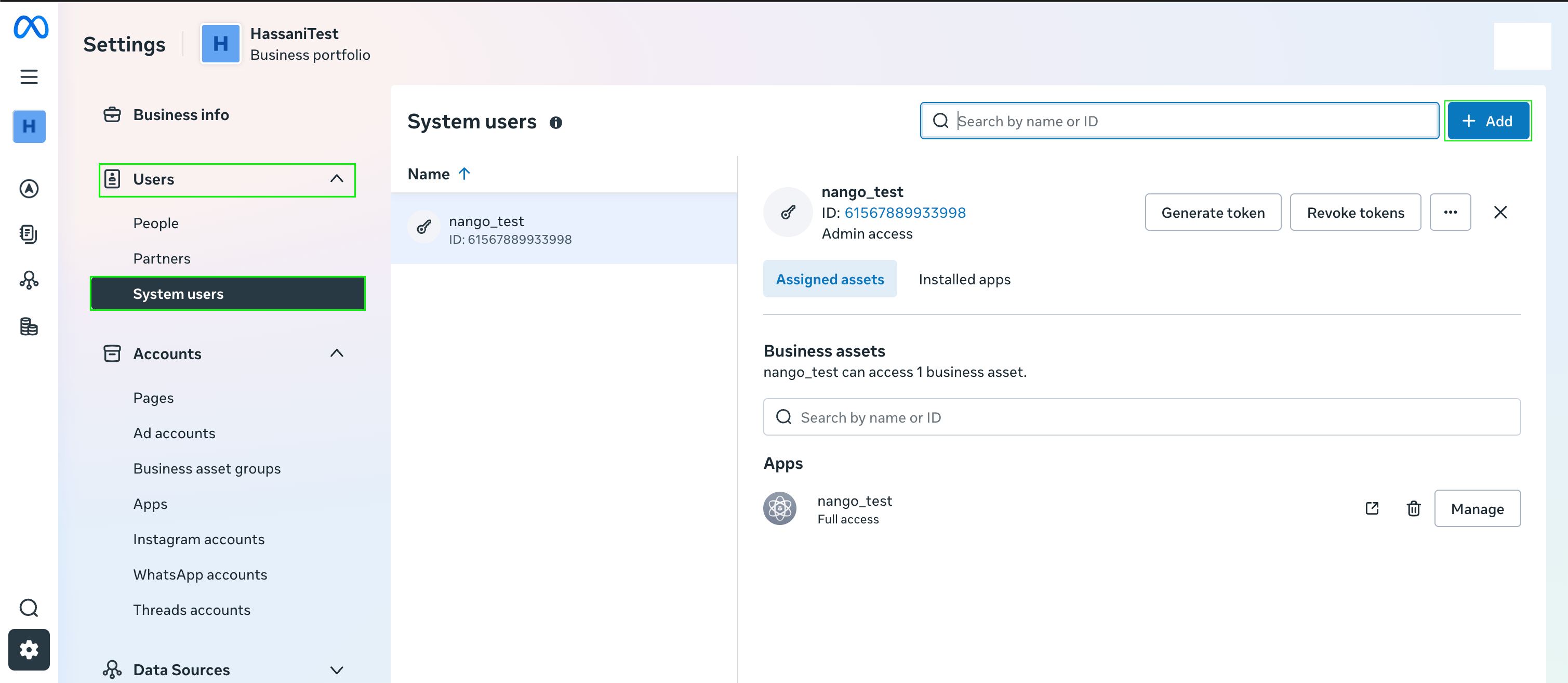 3. Open the system user you just created, click **Assign Assets**, select **Apps**, choose your app, and grant it at least **Manage app** access.
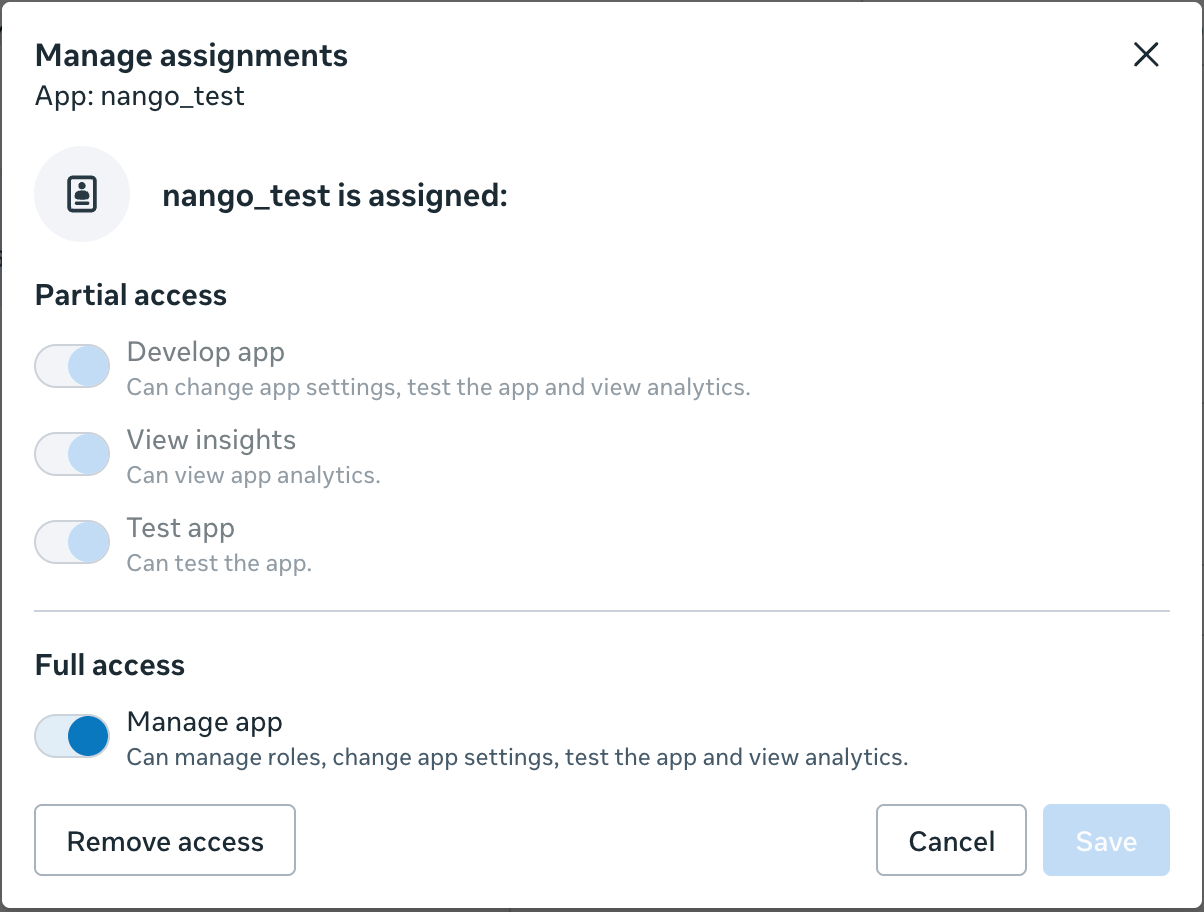 4. Reload the page and confirm the app shows **Full Access**.
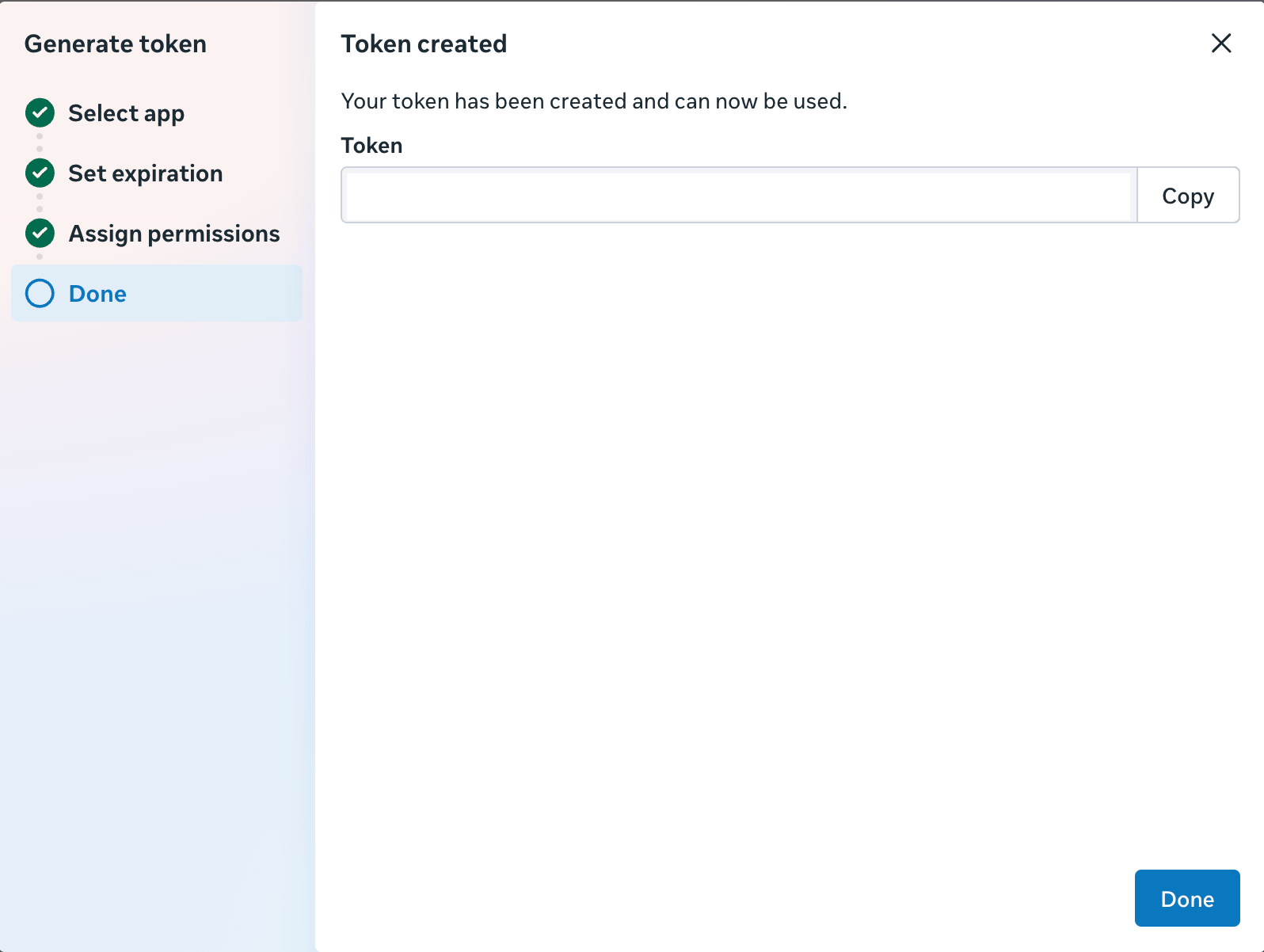
5. Click **Generate token**, select your app, choose a token expiration (pick **Never** for a permanent token — Nango does not run a refresh flow for this integration), and select the permissions your integration needs.
6. Copy the generated token — Facebook only shows it once.
4. Reload the page and confirm the app shows **Full Access**.
5. Click **Generate token**, select your app, choose a token expiration (pick **Never** for a permanent token — Nango does not run a refresh flow for this integration), and select the permissions your integration needs.
6. Copy the generated token — Facebook only shows it once.
 #### Step 2: Authorize in Nango
1. Open the form where you need to authenticate with Facebook (System User Token).
2. Enter your **System User Access Token** in its respective fields.
3. Submit the form, and you should be successfully authenticated.
#### Step 2: Authorize in Nango
1. Open the form where you need to authenticate with Facebook (System User Token).
2. Enter your **System User Access Token** in its respective fields.
3. Submit the form, and you should be successfully authenticated.
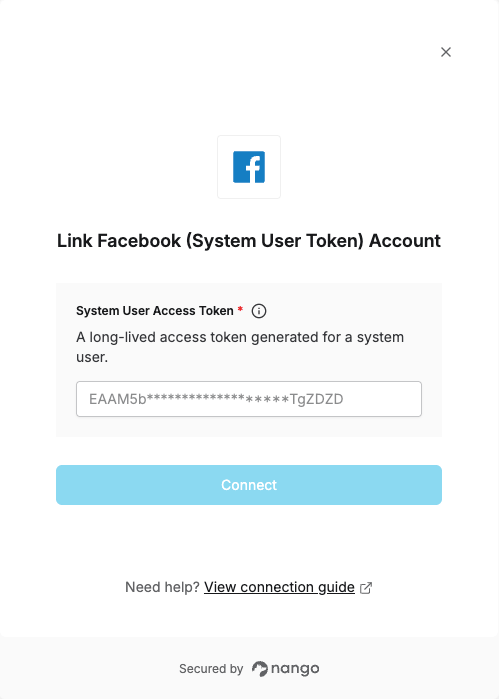 You are now connected to Facebook (System User Token).