> ## Documentation Index
> Fetch the complete documentation index at: https://nango.dev/docs/llms.txt
> Use this file to discover all available pages before exploring further.
# Ergo - How do I link my account?
# Overview
To authenticate with Ergo, you need:
1. **Token** — a token issued by Ergo that grants Nango read-only access to meetings visible to one Ergo user and organization.
This guide will walk you through obtaining your token from Ergo.
### Prerequisites
* An Ergo account with access to the meetings you want to sync.
### Step 1: Obtaining your token
1. Contact your Ergo organization admin, or your Ergo account contact, to request a token.
2. Ergo issues a token scoped to `meetings:read` for your user and organization. It looks like `ergo_api_at-...`.
Treat this token as a password: never put it in source code, URLs, logs, or client-side applications. Nango stores it encrypted and only uses it server-side to call the Ergo API on your behalf.
### Step 2: Enter your token in the Connect UI
Once you have your token:
1. Open the form where you need to authenticate with Ergo.
2. Enter your **token** in the designated field.
3. Submit the form, and you should be successfully authenticated.
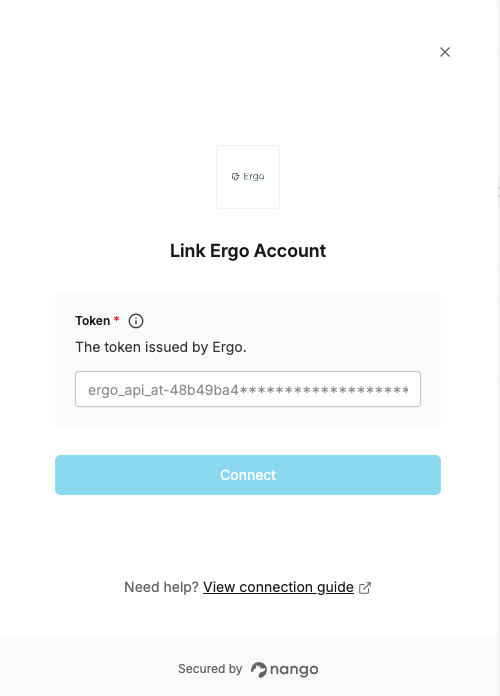 You are now connected to Ergo.