> ## Documentation Index
> Fetch the complete documentation index at: https://nango.dev/docs/llms.txt
> Use this file to discover all available pages before exploring further.
# Drata - How do I link my account?
# Overview
To authenticate with Drata, you need:
1. **API Key** - A key that grants secure access to the Drata API, enabling authorized applications to interact with Drata resources and services.
This guide will walk you through generating your **API Key** within Drata.
### Prerequisites:
* You must have a Drata account
* You must have admin access to create API keys
### Instructions:
#### Step 1: Creating Your API Key
1. Go to the **Settings** page on Drata. To access settings, select your account on the bottom left side navigation and then select the **Settings** option.
2. Select **API Keys** on the Settings page.
3. Select the **Create API Key** button.
4. Fill in all the **API Key** details, for:
* **Allowed IP Addresses**: You can restrict key usage to the specified addresses. Please reach out to Nango support to get the current IPs to whitelist here.
5. Enter the scopes for your API:
* **Access**: The options are Custom, All read, or All read and write.
* **Custom**: Select the specific scopes you want enabled for that API key.
* **All read**: Enable all the current and future read permissions/scopes for the API key.
* **All read and write**: Enable all the current and future permissions/scopes for the API key.
6. Once you save, you will be prompted to acknowledge that you have saved your API key info in a secure location.
7. Copy your **API Key** immediately - you will not be able to access the full API key again after selecting Done.
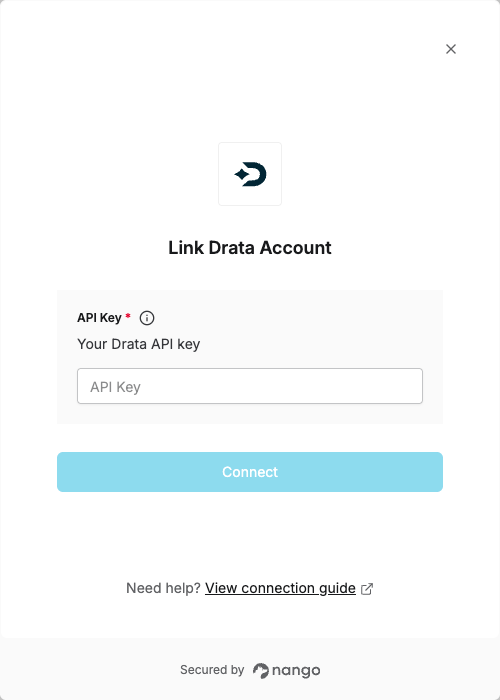
 #### Step 2: Enter credentials in the Connect UI
Once you have your **API Key**:
1. Open the form where you need to authenticate with Drata.
2. Enter your **API Key** in the designated field.
3. Submit the form, and you should be successfully authenticated.
#### Step 2: Enter credentials in the Connect UI
Once you have your **API Key**:
1. Open the form where you need to authenticate with Drata.
2. Enter your **API Key** in the designated field.
3. Submit the form, and you should be successfully authenticated.
 You are now connected to Drata.