> ## Documentation Index
> Fetch the complete documentation index at: https://nango.dev/docs/llms.txt
> Use this file to discover all available pages before exploring further.
# Discord Bot - How do I link my account?
## Overview
To authenticate with the Discord API via Nango, you will need:
1. **Bot Token** – Your Discord bot's token from the Discord Developer Portal.
This guide walks you through creating a Discord application with a bot and getting your **Bot Token**.
### Prerequisites
* A Discord account.
### Instructions
#### Step 1: Creating a Discord application and bot
1. Go to the [Discord Developer Portal](https://discord.com/developers/applications) and sign in.
2. Click **New Application**, give it a name, and click **Create**.
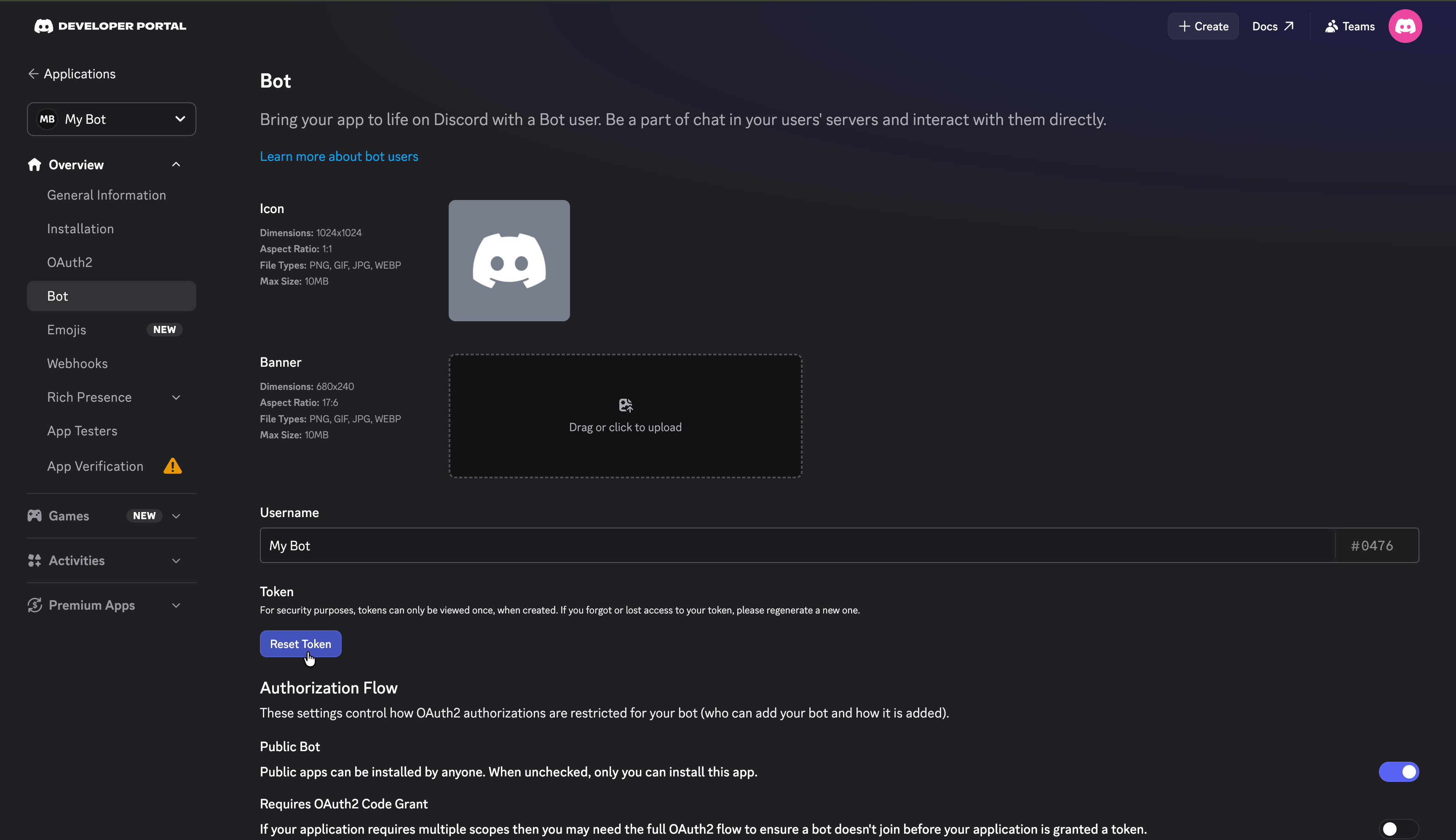
3. In the left sidebar, go to the **Bot** tab.
4. Click **Reset Token**, then confirm. Discord displays your **Bot Token** once.
5. Copy the token and store it securely. If you lose it, you can reset it again, which invalidates the previous token.
 If your bot needs privileged gateway intents (Presence, Server Members, or Message Content), enable them in the **Bot** tab under **Privileged Gateway Intents**.
#### Step 2: Inviting the bot to a server
To call API endpoints that operate on a server (guild), the bot must be a member of it:
1. In the left sidebar, go to **OAuth2**.
2. Under **OAuth2 URL Generator**, select the `bot` scope and the permissions your bot needs.
3. Open the generated URL in your browser and select the server to add the bot to.
#### Step 3: Enter credentials in the Connect UI
Once you have your **Bot Token**:
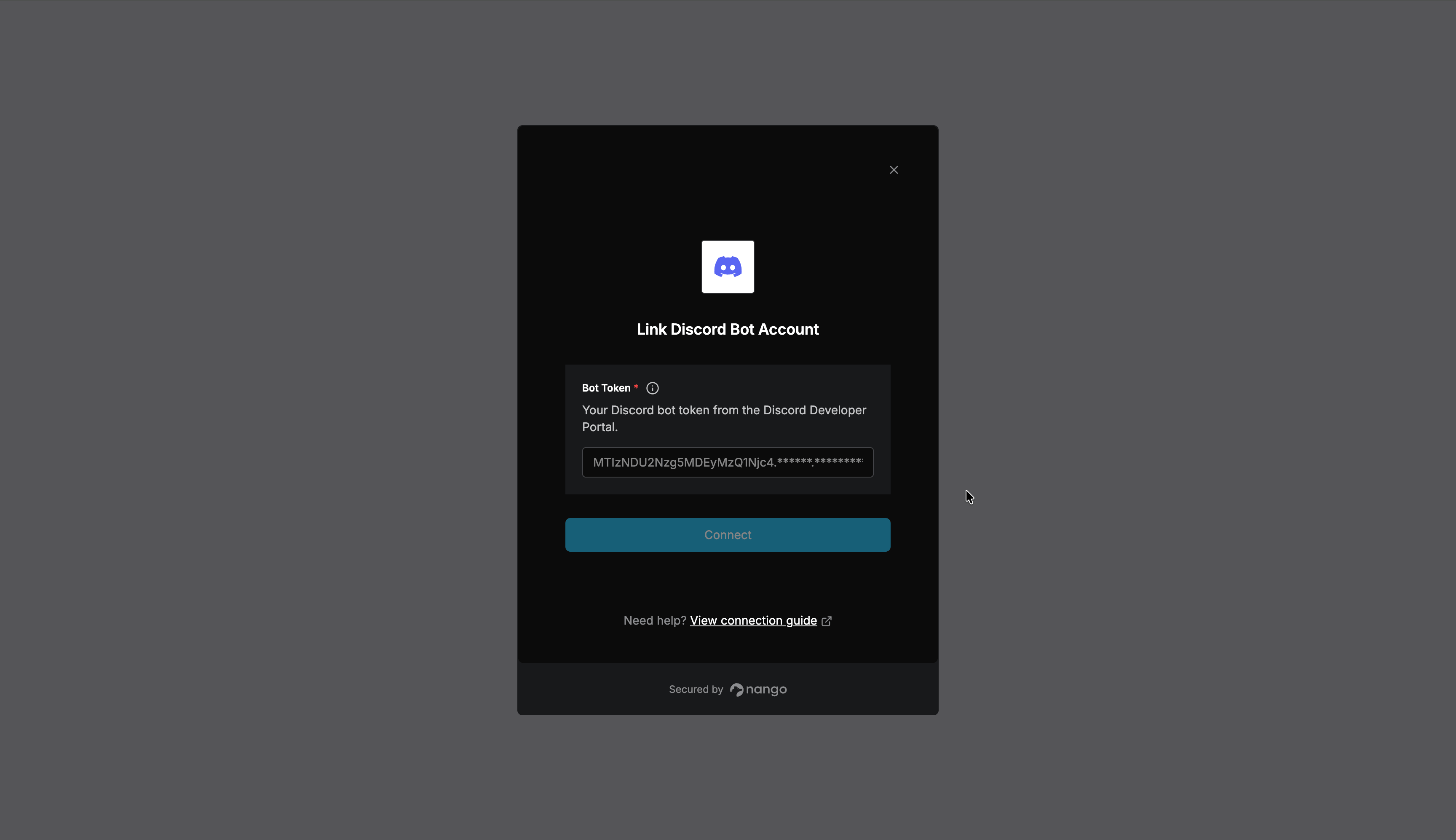
1. Open the form where you need to authenticate with Discord Bot.
2. Enter your **Bot Token** in its respective field.
3. Submit the form, and you should be successfully authenticated.
If your bot needs privileged gateway intents (Presence, Server Members, or Message Content), enable them in the **Bot** tab under **Privileged Gateway Intents**.
#### Step 2: Inviting the bot to a server
To call API endpoints that operate on a server (guild), the bot must be a member of it:
1. In the left sidebar, go to **OAuth2**.
2. Under **OAuth2 URL Generator**, select the `bot` scope and the permissions your bot needs.
3. Open the generated URL in your browser and select the server to add the bot to.
#### Step 3: Enter credentials in the Connect UI
Once you have your **Bot Token**:
1. Open the form where you need to authenticate with Discord Bot.
2. Enter your **Bot Token** in its respective field.
3. Submit the form, and you should be successfully authenticated.
 You are now connected to Discord.
This documentation is built and hosted on [Mintlify](https://mintlify.com), a developer documentation platform.
You are now connected to Discord.
This documentation is built and hosted on [Mintlify](https://mintlify.com), a developer documentation platform.