> ## Documentation Index
> Fetch the complete documentation index at: https://nango.dev/docs/llms.txt
> Use this file to discover all available pages before exploring further.
# Datadog - How do I link my account?
# Overview
To authenticate with Datadog, you need three key pieces of information:
1. **API Key** - Your Datadog API Key
2. **Site Parameter** - Location of your datadog host
3. **Application Key** - Keys are associated with the user account that created
This guide will walk you through finding or creating those credentials within Datadog.
### Prerequisites:
* You must set up an account with Datadog.
#### Step 1: Finding Your Datadog Domain
1. Log in to your Datadog account.
2. You can identify which site (Site Parameter) you are on by matching your Datadog website URL (in your browser) to one of the following:
| Site | Site URL | Site Parameter | Location |
| ------- | ------------------------------------------------------ | ----------------- | ------------ |
| US1 | [https://app.datadoghq.com](https://app.datadoghq.com) | datadoghq.com | US |
| US3 | [https://us3.datadoghq.com](https://us3.datadoghq.com) | us3.datadoghq.com | US |
| US5 | [https://us5.datadoghq.com](https://us5.datadoghq.com) | us5.datadoghq.com | US |
| EU1 | [https://app.datadoghq.eu](https://app.datadoghq.eu) | datadoghq.eu | EU (Germany) |
| US1-FED | [https://app.ddog-gov.com](https://app.ddog-gov.com) | ddog-gov.com | US |
| AP1 | [https://ap1.datadoghq.com](https://ap1.datadoghq.com) | ap1.datadoghq.com | Japan |
#### Step 2: Datadog API Key
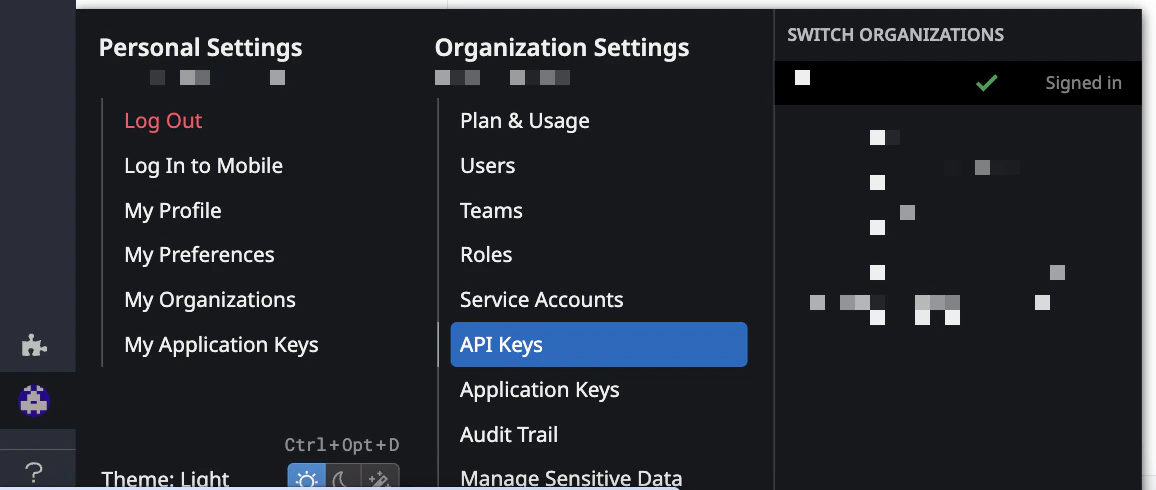
1. To add a Datadog API key, Navigate to **Organization settings**, then click the **API keys** tab.
* Click the **New Key** or **New Client Token** button, depending on which you're creating
* Enter a name for your key and then click **Create API key**
 Note:
* Your org must have at least one API key and at most 50 API keys.
* Key names must be unique across your organization.
#### Step 3: Datadog Application Key
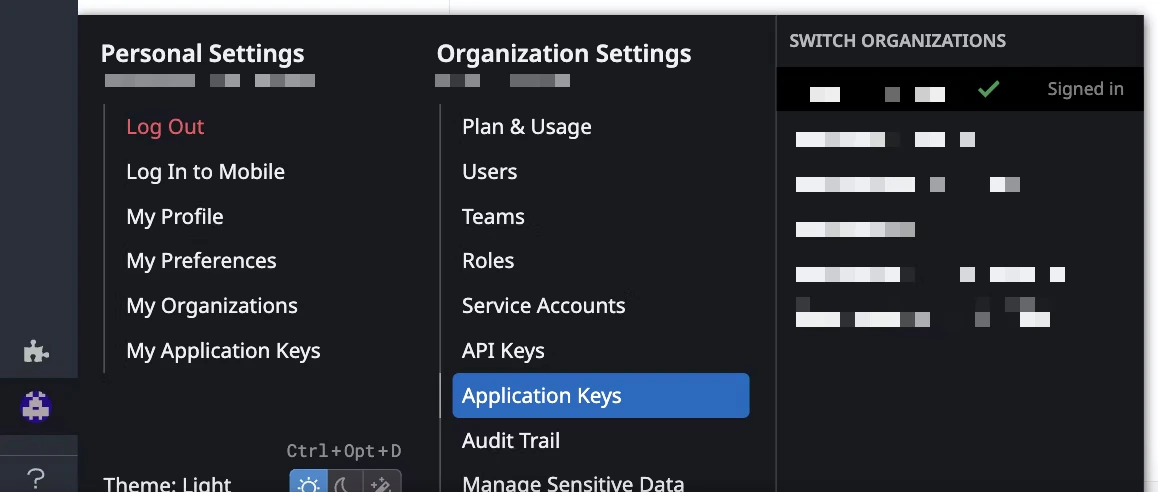
1. To create a new application key, navigate to **Organization Settings** > **Application Keys**. If you have the permission to create application keys, click **New Key**.
Note:
* Your org must have at least one API key and at most 50 API keys.
* Key names must be unique across your organization.
#### Step 3: Datadog Application Key
1. To create a new application key, navigate to **Organization Settings** > **Application Keys**. If you have the permission to create application keys, click **New Key**.
 2. Enter an alias for the API Key for easy identification.
Note:
* Application key names cannot be blank.
* Securely copy your API and application keys
3. Optional step: On the same modal, click on "Edit scopes". In the "Select scopes" modal, select the scopes you want to grant to the application key,
we recommend selecting `user_access_manage` and `user_access_read` if you want to use existing Nango Datadog integration. If left blank, the application key
will mirror the scopes of the user account that created it.
#### Step 4: Connect Your Datadog Account
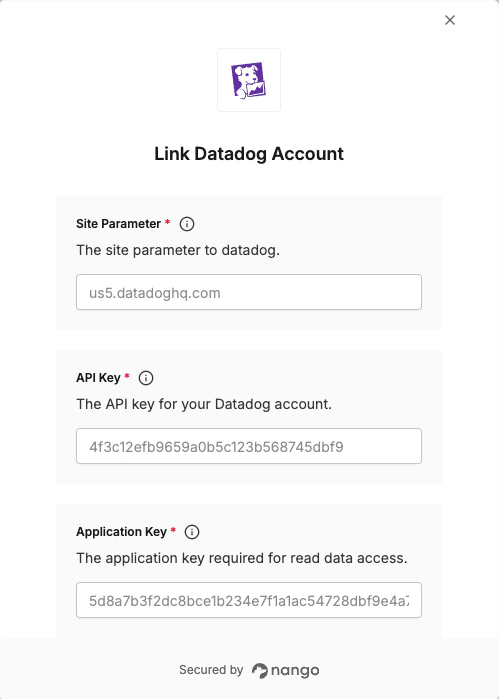
Once you have your **Site Parameter**, **API Key** and **Application Key** :
1. Open the form where you need to authenticate with Datadog.
2. Enter your **Site Parameter**, **API Key** and **Application Key** in their respective fields.
3. Submit the form, and you should be successfully authenticated.
2. Enter an alias for the API Key for easy identification.
Note:
* Application key names cannot be blank.
* Securely copy your API and application keys
3. Optional step: On the same modal, click on "Edit scopes". In the "Select scopes" modal, select the scopes you want to grant to the application key,
we recommend selecting `user_access_manage` and `user_access_read` if you want to use existing Nango Datadog integration. If left blank, the application key
will mirror the scopes of the user account that created it.
#### Step 4: Connect Your Datadog Account
Once you have your **Site Parameter**, **API Key** and **Application Key** :
1. Open the form where you need to authenticate with Datadog.
2. Enter your **Site Parameter**, **API Key** and **Application Key** in their respective fields.
3. Submit the form, and you should be successfully authenticated.
 You are now connected to Datadog.