> ## Documentation Index
> Fetch the complete documentation index at: https://nango.dev/docs/llms.txt
> Use this file to discover all available pages before exploring further.
# Checkbox AI - How do I link my account?
## Overview
To authenticate with Checkbox AI, you will need:
1. **Environment** – The Checkbox AI environment your account lives in: production or sandbox.
2. **Partner API Key** – A key that grants Nango permission to interact with Checkbox AI's Matter Management API on your behalf.
3. **Account ID** (optional) – Your account ID for Checkbox AI's Create Assessment API.
4. **Create Assessment Base URL** (optional) – The base URL of your Checkbox AI environment for the Create Assessment API.
You only need the Account ID and Create Assessment Base URL if the application you are connecting will start Checkbox workflows. This guide explains how to obtain all of these.
### Prerequisites
* An active Checkbox account with admin access, so you can create Partner API keys.
### Instructions
#### Step 1: Choose your environment
Checkbox serves production and sandbox accounts from different addresses. Pick the one that matches the address you use to log in:
| Environment | Login address | Value to select |
| - | - | - |
| Production | `https://app.checkbox.ai` | `app.checkbox.ai` |
| Sandbox | `https://sandbox.checkbox-app.com` | `sandbox.checkbox-app.com` |
API keys only work in the environment where they were created, so create your key in the same environment in Step 2.
#### Step 2: Create an API key
1. Log in to your Checkbox account as an admin, at [app.checkbox.ai](https://app.checkbox.ai) for production or [sandbox.checkbox-app.com](https://sandbox.checkbox-app.com) for sandbox.
2. Go to **Account Settings** > **API Keys**.
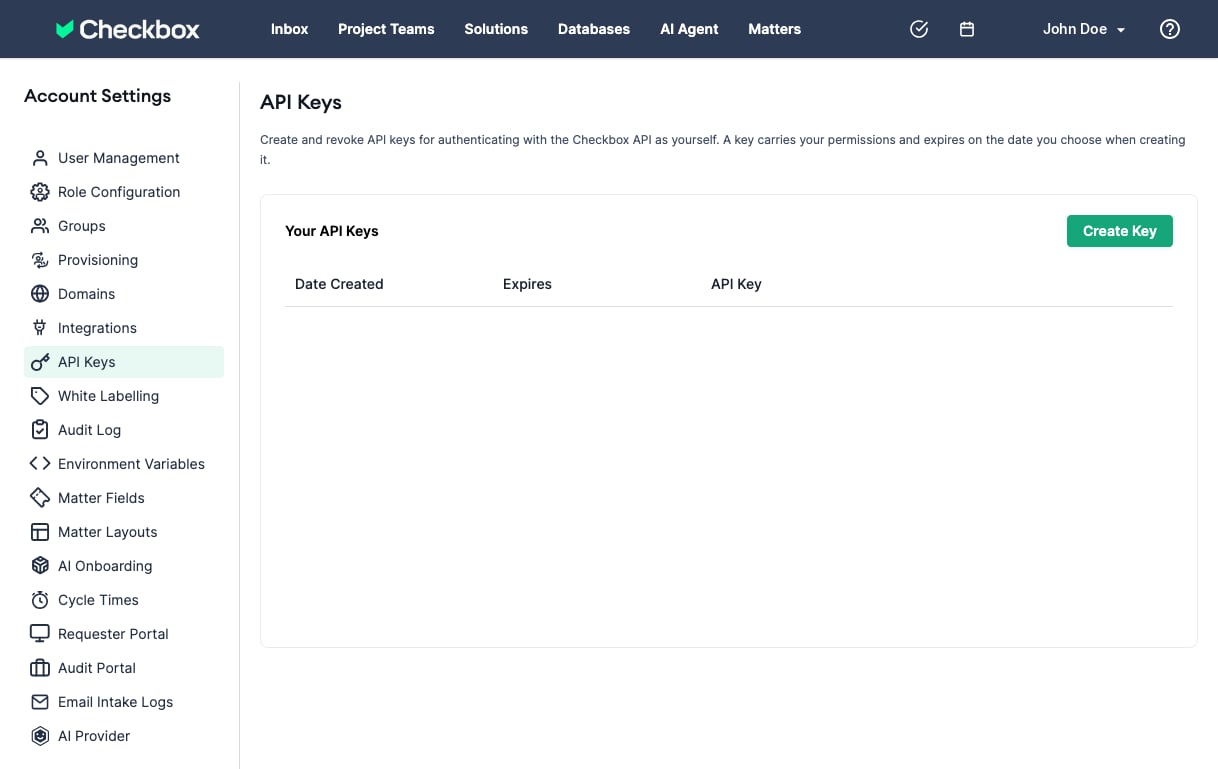 3. Create a new API key.
4. Copy the key and store it somewhere safe. Treat it like a password: anyone with the key can read and update matters in your Checkbox account.
#### Step 3: Find your Create Assessment account ID
Skip this step if you only need matter management.
**Account ID** A number, for example `12345`.
1. Log in to your Checkbox account.
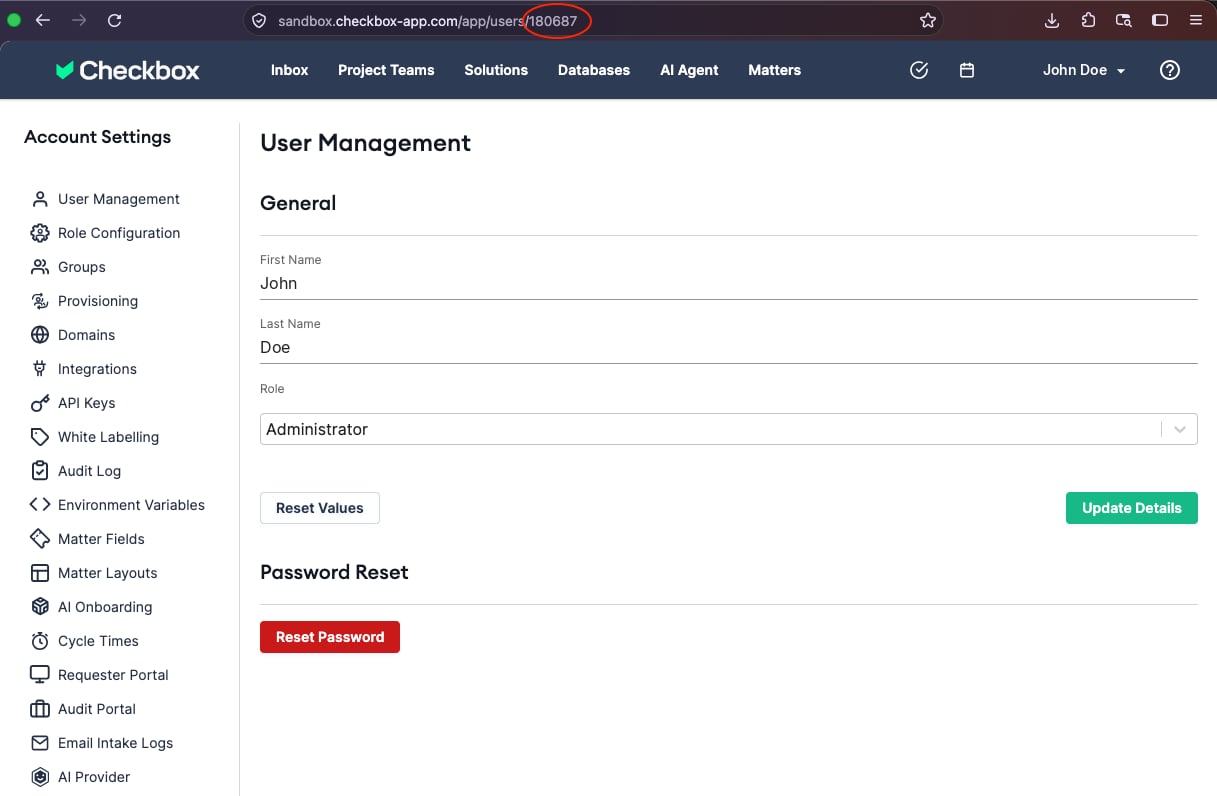
2. Go to **Account Settings** > **User Management**
3. Find your user and click on your name.
4. Copy your user account ID in the browser's address bar:
3. Create a new API key.
4. Copy the key and store it somewhere safe. Treat it like a password: anyone with the key can read and update matters in your Checkbox account.
#### Step 3: Find your Create Assessment account ID
Skip this step if you only need matter management.
**Account ID** A number, for example `12345`.
1. Log in to your Checkbox account.
2. Go to **Account Settings** > **User Management**
3. Find your user and click on your name.
4. Copy your user account ID in the browser's address bar:
 #### Step 4: Enter credentials in the Connect UI
1. Open the form where you need to authenticate with Checkbox.
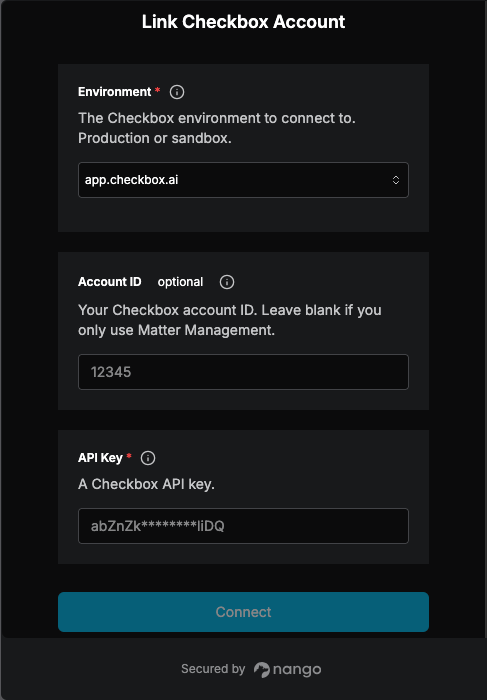
2. Select your **Environment**.
3. Enter your **API Key** in the API Key field.
4. If you completed Step 3, enter your **Account ID**.
5. Submit the form to complete authentication.
#### Step 4: Enter credentials in the Connect UI
1. Open the form where you need to authenticate with Checkbox.
2. Select your **Environment**.
3. Enter your **API Key** in the API Key field.
4. If you completed Step 3, enter your **Account ID**.
5. Submit the form to complete authentication.
 You are now connected to Checkbox.
This documentation is built and hosted on [Mintlify](https://mintlify.com), a developer documentation platform.
You are now connected to Checkbox.
This documentation is built and hosted on [Mintlify](https://mintlify.com), a developer documentation platform.