> ## Documentation Index
> Fetch the complete documentation index at: https://nango.dev/docs/llms.txt
> Use this file to discover all available pages before exploring further.
# Cerby - How do I link my account?
# Overview
To authenticate with Cerby, you need:
1. **Workspace** - The subdomain of your Cerby workspace.
2. **API Key** - A key that grants scoped access to the Cerby API, enabling authorized applications to interact with Cerby resources and services.
This guide will walk you through finding your **Workspace** subdomain and generating your **API Key** in Cerby.
### Prerequisites
* A Cerby workspace where you're a Workspace Owner, Super Admin, or Admin — only these roles can generate API keys, and only from the Cerby web app.
### Instructions
#### Step 1: Finding your workspace subdomain
Your workspace subdomain is the first part of your workspace's URL. If you log in to Cerby at `https://my-workspace.cerby.com`, your workspace subdomain is `my-workspace`.
#### Step 2: Generating your API key
1. Log in to your Cerby workspace and select **Settings** from the left navigation.
2. Select the **API keys** tab, then click **Generate API key**.
3. Enter a name for the key and select an expiration time (1 hour, 12 hours, 1 day, 5 days, 1 year, or a custom duration).
4. Select the scopes required for the endpoints you plan to use — for example, **Read accounts**, **Read secrets**, or **Write integrations**.
5. Copy the generated key. Cerby only displays it once in plain text — if you navigate away before copying it, you'll need to generate a new one. Alternatively, click **Save in Cerby** to store it directly in one of your vaults.
The scopes you select determine the endpoints and data the key can access, based on Cerby's role-based access control (RBAC) system. A request against an endpoint outside the key's scopes returns a 401, even if the key itself is valid or unexpired.
#### Step 3: Enter credentials in the Connect UI
Once you have your **Workspace** subdomain and **API Key**:
1. Open the form where you need to authenticate with Cerby.
2. Enter your **Workspace** and **API Key** in the fields provided.
3. Submit the form, and you should be successfully authenticated.
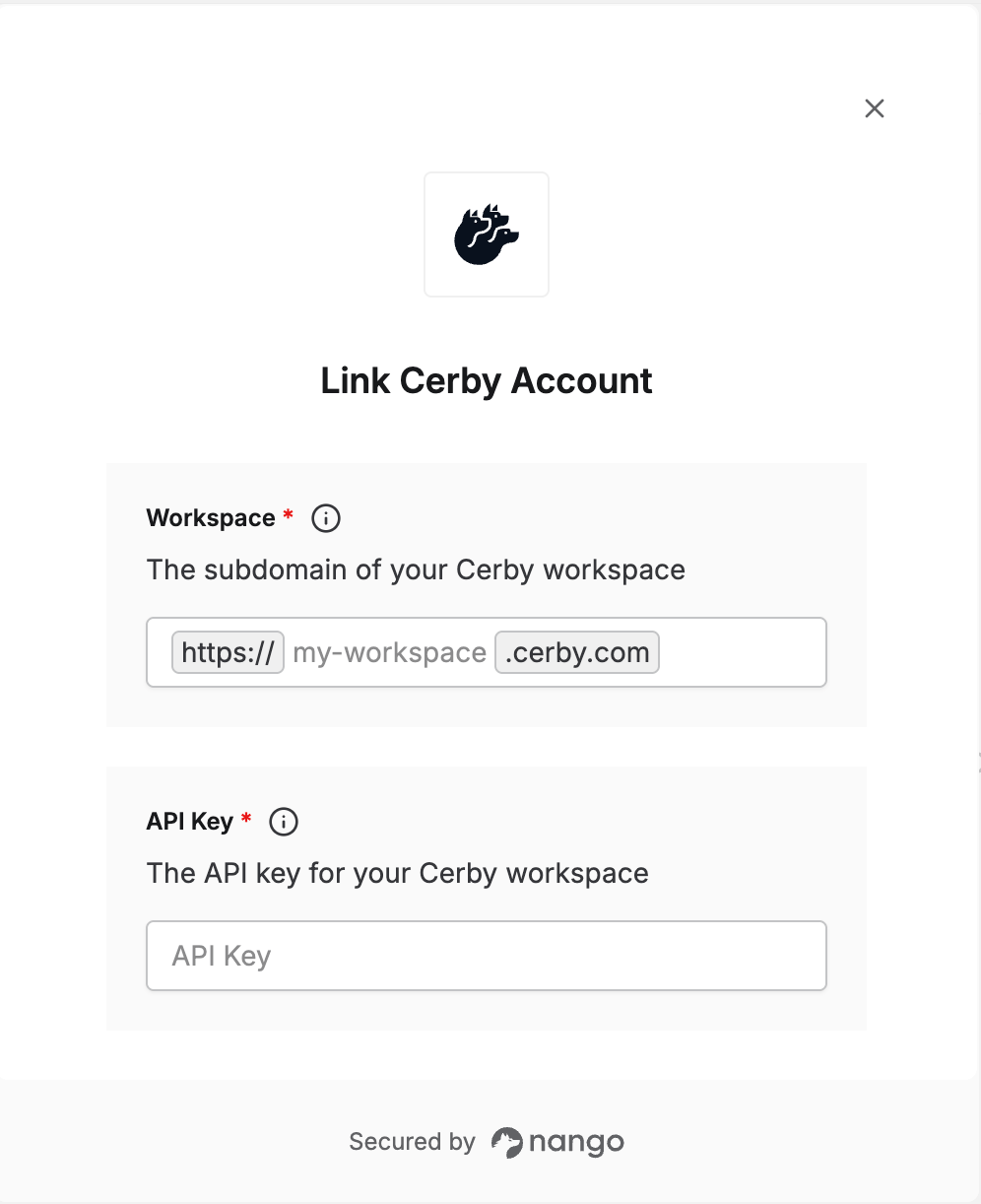 You are now connected to Cerby.