> ## Documentation Index
> Fetch the complete documentation index at: https://nango.dev/docs/llms.txt
> Use this file to discover all available pages before exploring further.
# Bandwidth - How do I link my account?
## Overview
To authenticate with Bandwidth, you will need:
1. **Client ID** - The Client ID of a Bandwidth API Credential.
2. **Client Secret** - The Client Secret issued together with that Client ID.
3. **API subdomain** - The Bandwidth product API (Messaging, Voice, Numbers, or Account) this connection calls by default.
These are **API Credentials** created under **Account > API Credentials** in the Bandwidth App. They are not your Bandwidth Dashboard login and not a legacy API User username/password. Bandwidth is retiring API Users: new API Users could no longer be created after April 1, 2026, and all API Users stop working on December 2, 2026. Only API Credentials are supported here.
### Prerequisites
* You must have access to the [Bandwidth App](https://dashboard.bandwidth.com).
* Your user needs the **Credential Access** role to create API Credentials. If you don't see **API Credentials** under **Account**, ask your admin to assign this role.
* Your account must be enabled for the products you want to call (Messaging, Voice, Numbers).
### Instructions
#### Step 1: Create an API Credential
1. Log in to the [Bandwidth App](https://dashboard.bandwidth.com).
2. Go to **Account > API Credentials** and click **Create**.
3. Fill in the required fields:
* **Description** - A note to help you identify these credentials.
* **Account scope** - Basic or admin level access.
* **Expiration** - Optionally set an expiration date for the initial Client Secret.
* **Roles** - The permissions for the APIs you will call, for example **Messaging**, **Voice** and **Numbers**. Keep the role set minimal.
* **Accounts** - The accounts these credentials can access.
4. Click **Create** and copy the **Client ID** (starts with `CLI-`) and **Client Secret**. The Client Secret is shown only once; store it securely.
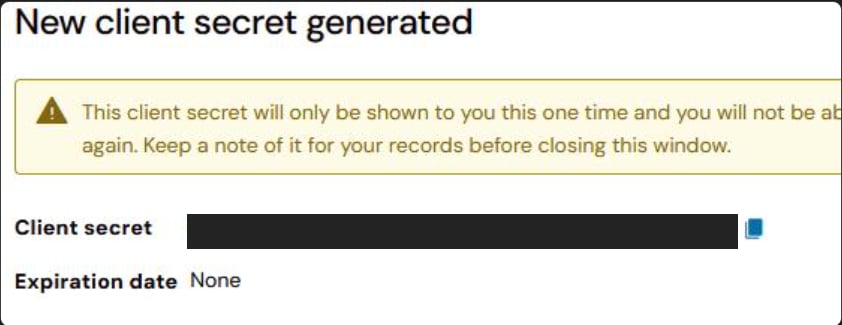 You can find the Client ID again later on the credential's details page. If you lose the Client Secret, use **Generate new secret** on that page (a credential can hold up to two secrets).
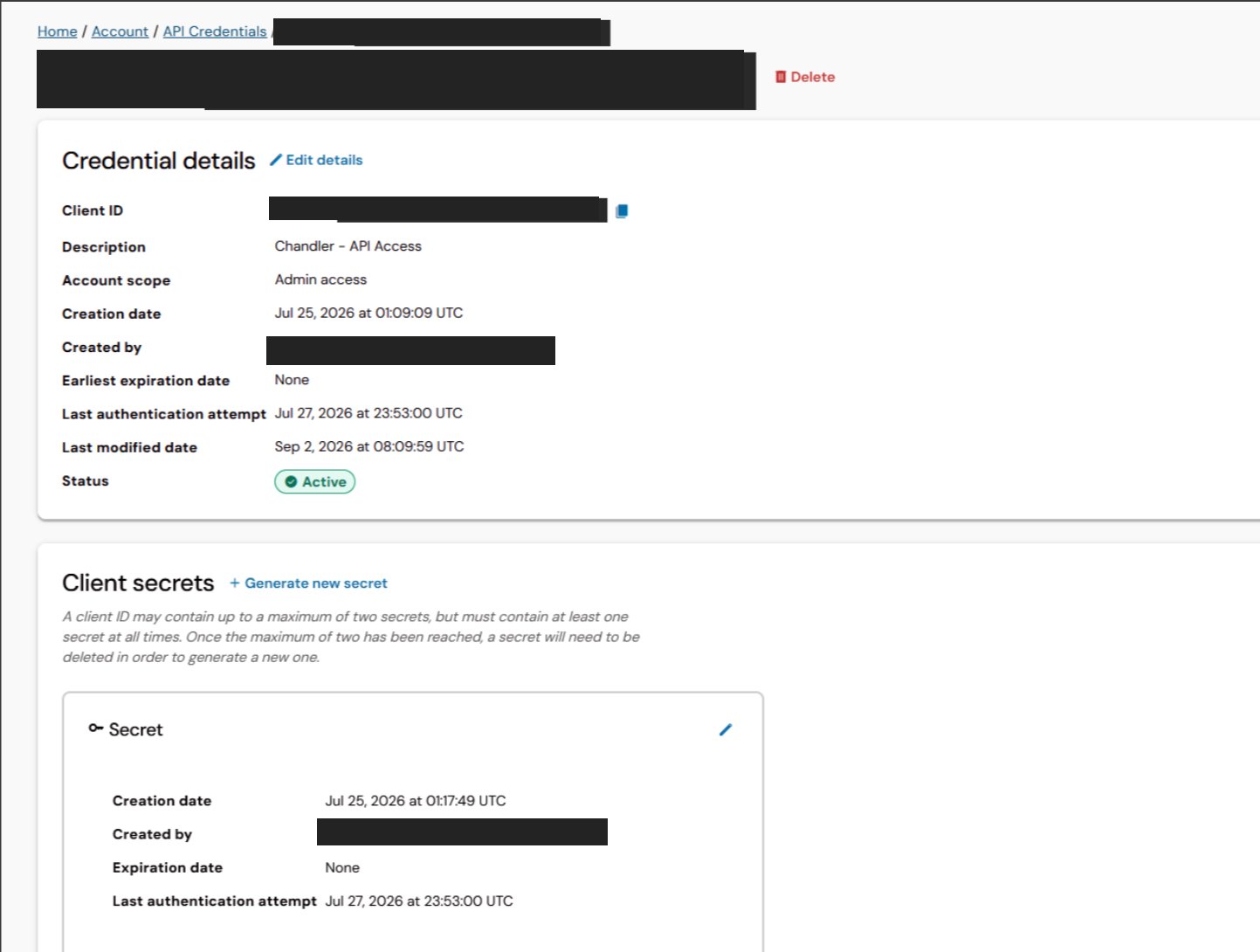 See Bandwidth's guides on [managing API Credentials](https://dev.bandwidth.com/docs/account/credentials/management) and [migrating from API Users](https://dev.bandwidth.com/docs/account/credentials/migration) for details.
#### Step 2: Choose the API subdomain
Bandwidth's product APIs live on separate hosts. Pick the subdomain for the API you will call most; you can still reach the other hosts from the same connection with a [base URL override](/docs/guides/platform/proxy-requests).
| API | API subdomain | Host |
| ----------------------------------------------------- | ------------- | ------------------------- |
| Messaging | `messaging` | `messaging.bandwidth.com` |
| Voice | `voice` | `voice.bandwidth.com` |
| Phone Number Lookup | `numbers` | `numbers.bandwidth.com` |
| Numbers & Account (credentials, orders, sub-accounts) | `api` | `api.bandwidth.com` |
#### Step 3: Enter credentials in the Connect UI
Once you have your **Client ID**, **Client Secret**, and **API subdomain**:
1. Open the form where you need to authenticate with Bandwidth.
2. Select the **API subdomain** from Step 2.
3. Enter your **Client ID** in the **Client ID** field.
4. Enter your **Client Secret** in the **Client Secret** field.
5. Submit the form, and you should be successfully authenticated.
See Bandwidth's guides on [managing API Credentials](https://dev.bandwidth.com/docs/account/credentials/management) and [migrating from API Users](https://dev.bandwidth.com/docs/account/credentials/migration) for details.
#### Step 2: Choose the API subdomain
Bandwidth's product APIs live on separate hosts. Pick the subdomain for the API you will call most; you can still reach the other hosts from the same connection with a [base URL override](/docs/guides/platform/proxy-requests).
| API | API subdomain | Host |
| ----------------------------------------------------- | ------------- | ------------------------- |
| Messaging | `messaging` | `messaging.bandwidth.com` |
| Voice | `voice` | `voice.bandwidth.com` |
| Phone Number Lookup | `numbers` | `numbers.bandwidth.com` |
| Numbers & Account (credentials, orders, sub-accounts) | `api` | `api.bandwidth.com` |
#### Step 3: Enter credentials in the Connect UI
Once you have your **Client ID**, **Client Secret**, and **API subdomain**:
1. Open the form where you need to authenticate with Bandwidth.
2. Select the **API subdomain** from Step 2.
3. Enter your **Client ID** in the **Client ID** field.
4. Enter your **Client Secret** in the **Client Secret** field.
5. Submit the form, and you should be successfully authenticated.
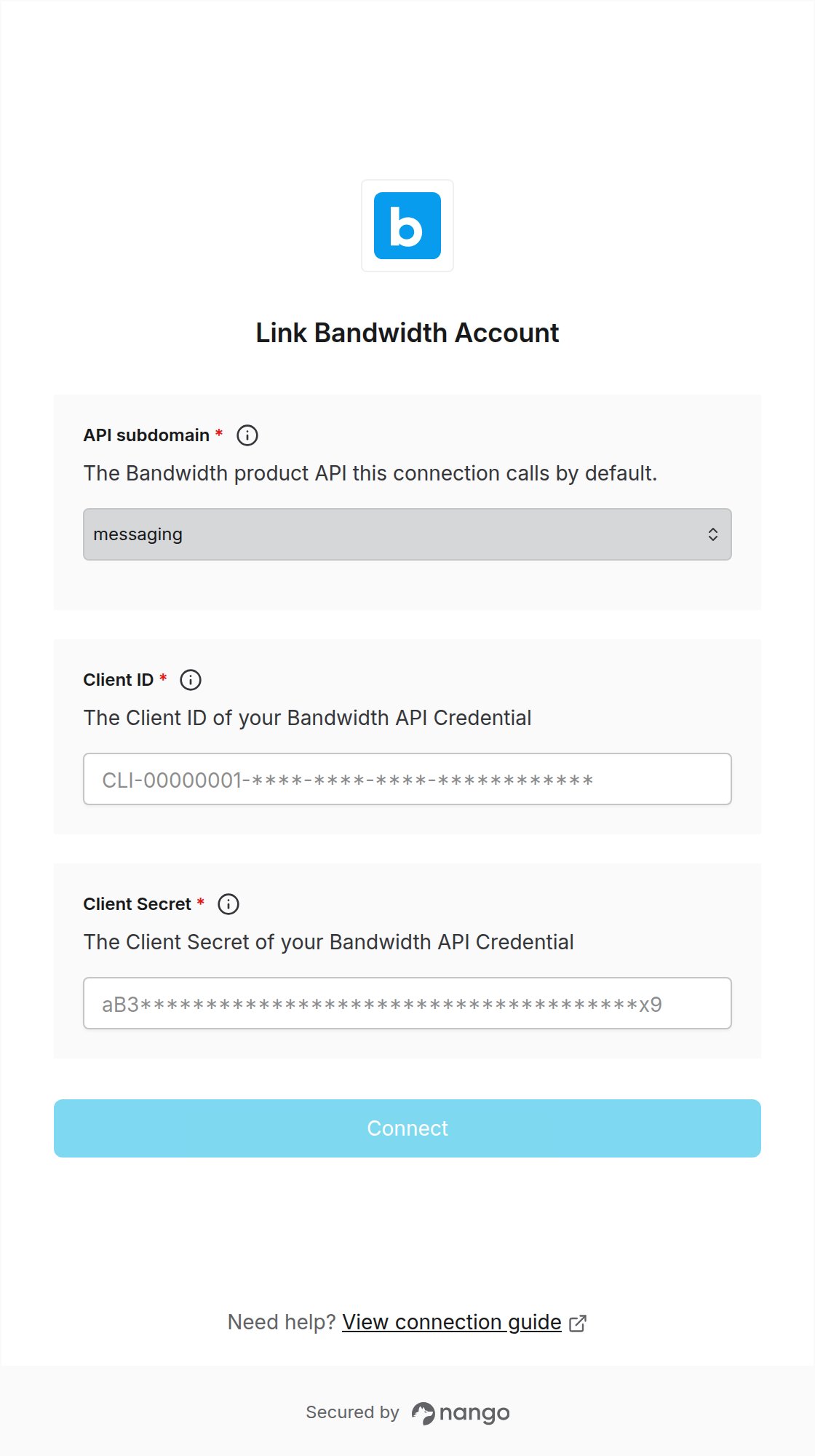 You are now connected to Bandwidth.