> ## Documentation Index
> Fetch the complete documentation index at: https://nango.dev/docs/llms.txt
> Use this file to discover all available pages before exploring further.
# Availity - How do I link my account?
# Overview
To authenticate with Availity, you need:
1. **API Key** - The API key from your approved Availity application.
2. **Secret** - The secret key from your approved Availity application.
This guide will walk you through registering an application and obtaining your credentials in the Availity Development Portal.
### Prerequisites:
* You must have an Availity account.
* You need access to the [Availity Development Portal](https://developer.availity.com/).
### Instructions:
#### Step 1: Obtaining Your Client Credentials
1. Go to the [Availity Development Portal](https://developer.availity.com/) and sign in. If you are not already logged in, select **Portal Login** at the top right of the landing page.
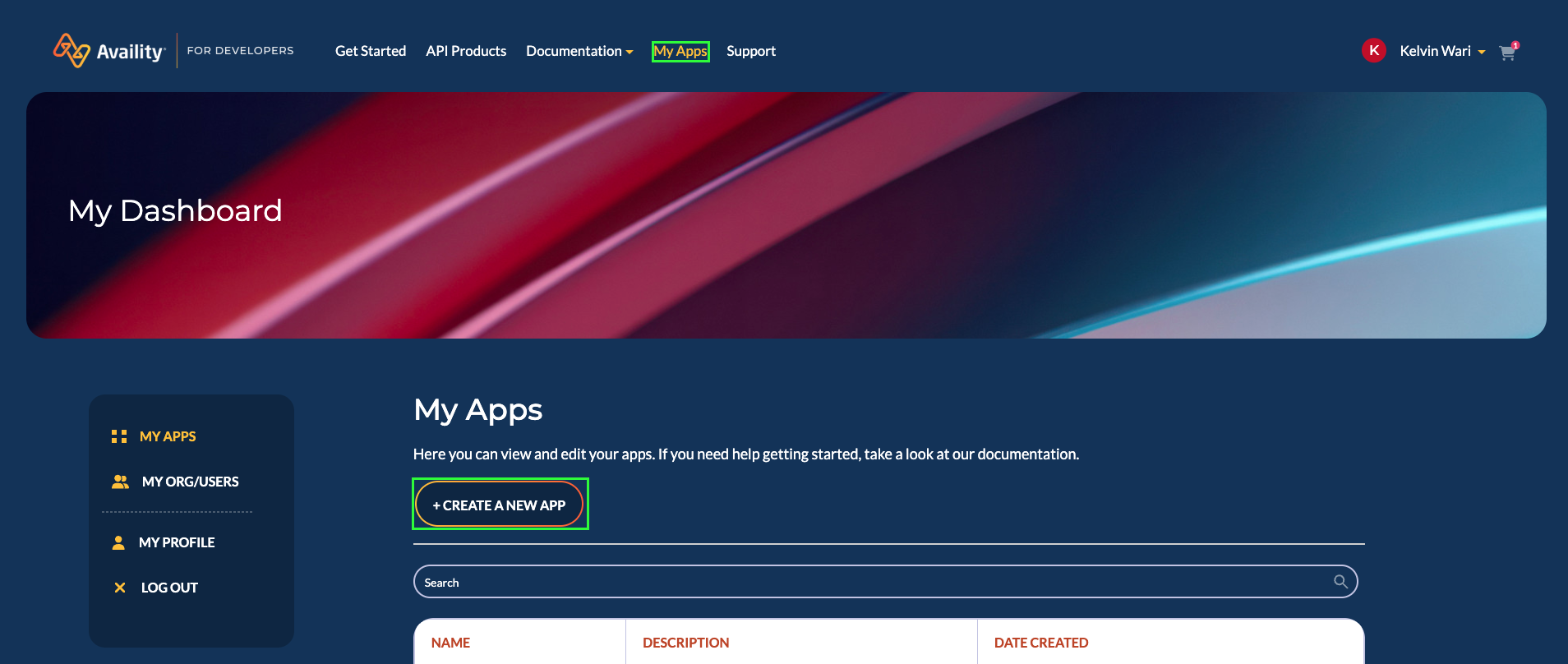
2. Select **My Apps** in the menu bar, then select **Create a New App**.
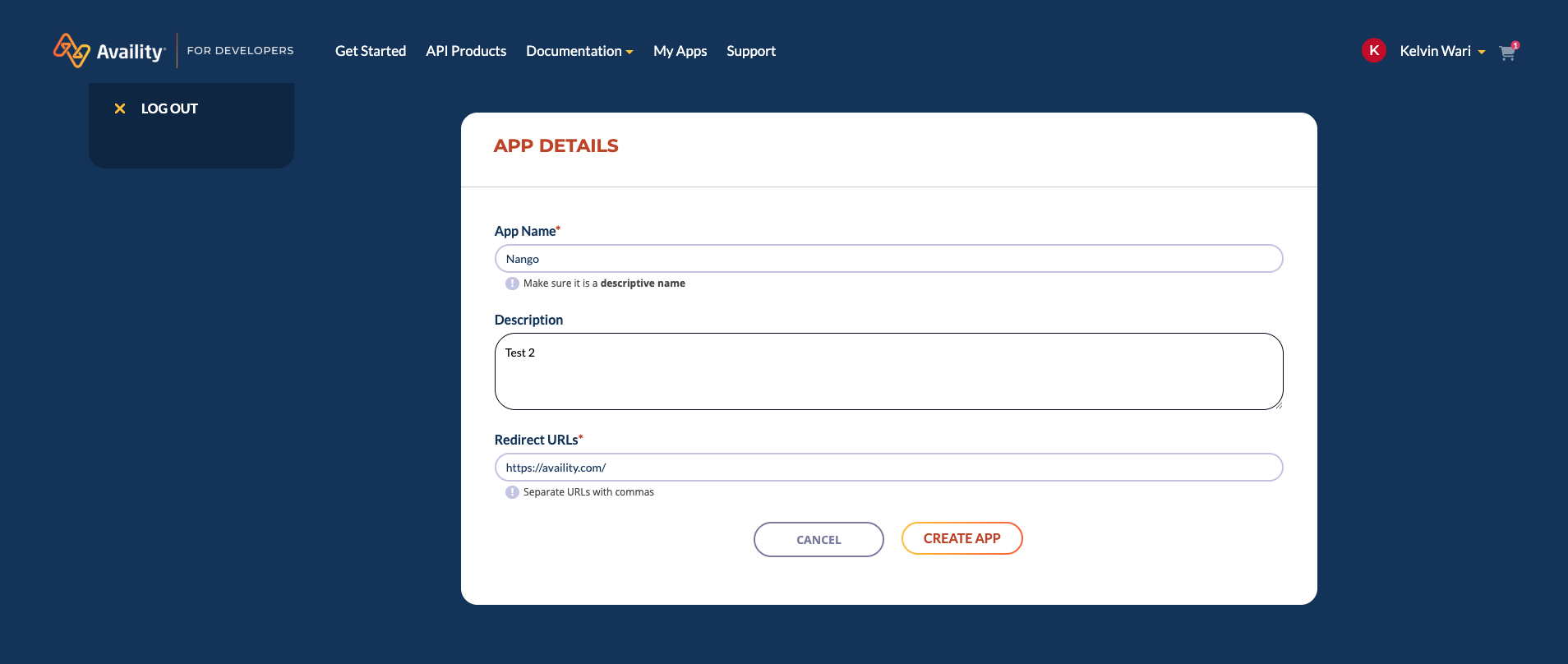
 3. Enter your application details (name, description, etc.), and then select **Create App**.
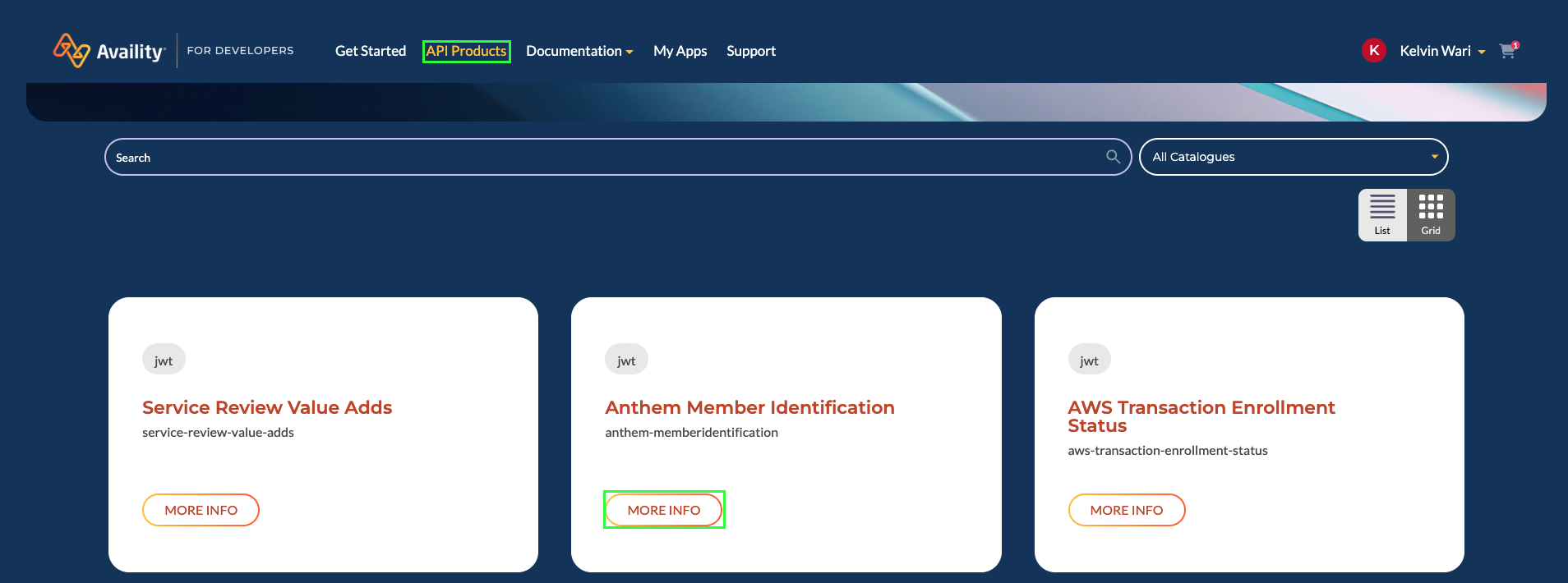
 4. Select **API Products** in the menu bar.
5. Select **More Info** to learn more about the accessible APIs in an available API product.
* **Note:** Select the title of any accessible API available in the selected API product to view its full definition.
4. Select **API Products** in the menu bar.
5. Select **More Info** to learn more about the accessible APIs in an available API product.
* **Note:** Select the title of any accessible API available in the selected API product to view its full definition.
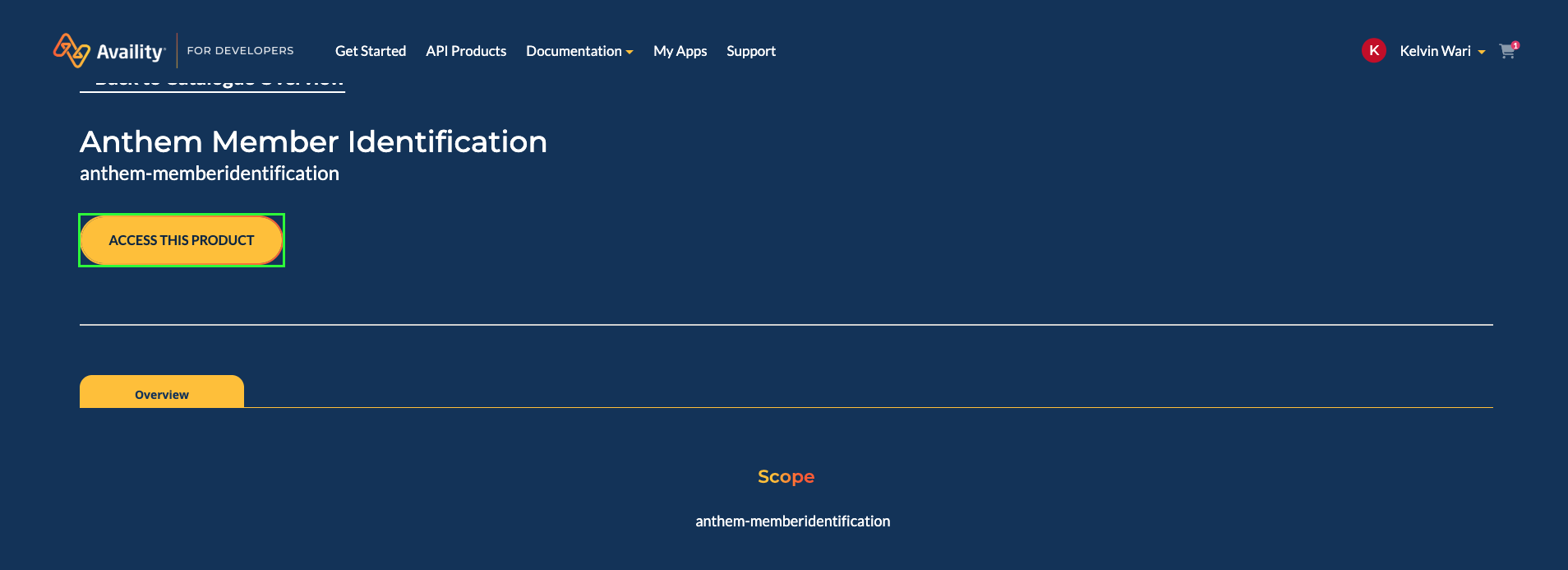
 6. Select **Access this Product** to view available subscription plans for the selected API product.
**Subscription Plans:**
* **Demo Plan**: A sandbox environment used to test communication with Availity APIs. Demo subscriptions are automatically approved and recommended for initial testing.
* **Standard Plan**: Full access to REST APIs and production data. Requires contract approval from the Trading Partner Management team.
It's recommended that you start with a Demo subscription to gain knowledge of the Availity REST API workflow. After exploring the Demo Plan, if you're ready to move forward, first place your subscription request for the Standard Plan on the Developer Portal, then email [partnermanagement@availity.com](mailto:partnermanagement@availity.com).
6. Select **Access this Product** to view available subscription plans for the selected API product.
**Subscription Plans:**
* **Demo Plan**: A sandbox environment used to test communication with Availity APIs. Demo subscriptions are automatically approved and recommended for initial testing.
* **Standard Plan**: Full access to REST APIs and production data. Requires contract approval from the Trading Partner Management team.
It's recommended that you start with a Demo subscription to gain knowledge of the Availity REST API workflow. After exploring the Demo Plan, if you're ready to move forward, first place your subscription request for the Standard Plan on the Developer Portal, then email [partnermanagement@availity.com](mailto:partnermanagement@availity.com).
 7. Select **Access with this Plan** for the desired subscription plan to add the API product subscription to your cart.
8. Select **Go to cart** in the subscription notification (or select the cart icon next to your username at the top right).
9. Confirm that the API Product you want access to is listed in the selected product area.
10. Confirm that the **Selected Plan** is correct.
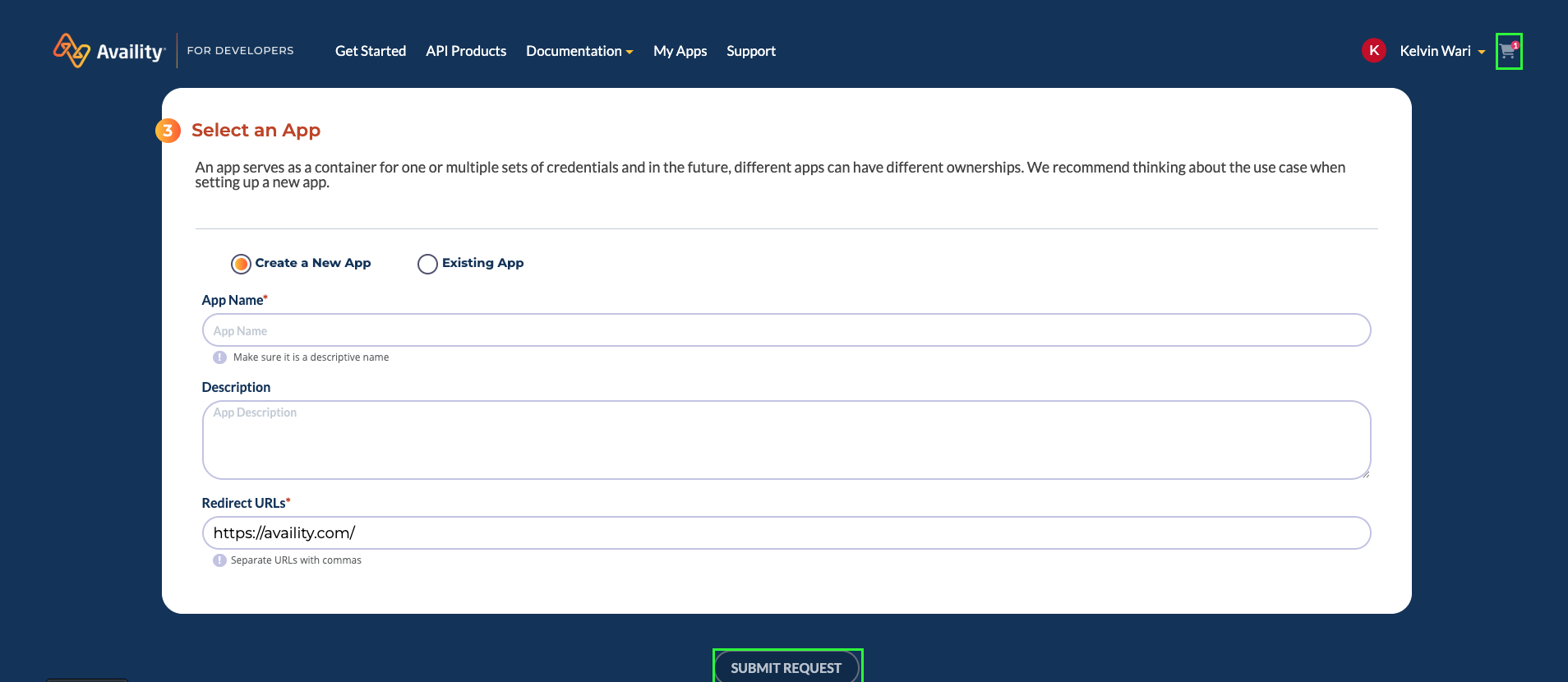
11. In the **Select an App** area, either:
* Select **Create a New App** and enter application details to create a new application, or
* Select **Existing App** and then select an existing application.
12. Select **Submit Request**.
7. Select **Access with this Plan** for the desired subscription plan to add the API product subscription to your cart.
8. Select **Go to cart** in the subscription notification (or select the cart icon next to your username at the top right).
9. Confirm that the API Product you want access to is listed in the selected product area.
10. Confirm that the **Selected Plan** is correct.
11. In the **Select an App** area, either:
* Select **Create a New App** and enter application details to create a new application, or
* Select **Existing App** and then select an existing application.
12. Select **Submit Request**.
 A notification indicates that the subscription request has been submitted for approval. Availity Client Services will approve the subscription and begin the API key provisioning process.
For Standard Plan subscriptions, the Trading Partner Management team will reach out to you for contract. The subscription request will be approved upon verification of contract status.
13. Once your subscription is approved, navigate to **My Apps** in the menu bar.
14. Select your application.
15. Go to **Approved Access** section.
16. Look for the product you subscribed to and expand **Client info**.
17. Copy your **API Key** (this is your Client ID) and **Secret** (this is your Client Secret).
A notification indicates that the subscription request has been submitted for approval. Availity Client Services will approve the subscription and begin the API key provisioning process.
For Standard Plan subscriptions, the Trading Partner Management team will reach out to you for contract. The subscription request will be approved upon verification of contract status.
13. Once your subscription is approved, navigate to **My Apps** in the menu bar.
14. Select your application.
15. Go to **Approved Access** section.
16. Look for the product you subscribed to and expand **Client info**.
17. Copy your **API Key** (this is your Client ID) and **Secret** (this is your Client Secret).
 #### Step 2: Enter credentials in the Connect UI
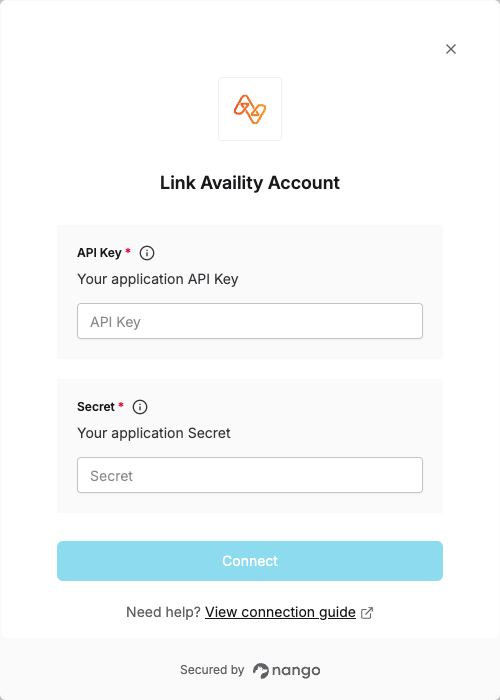
Once you have your **API Key** and **Client Secret**:
1. Open the form where you need to authenticate with Availity.
2. Enter your **API Key** and **Secret** in their designated fields.
3. Submit the form, and you should be successfully authenticated.
#### Step 2: Enter credentials in the Connect UI
Once you have your **API Key** and **Client Secret**:
1. Open the form where you need to authenticate with Availity.
2. Enter your **API Key** and **Secret** in their designated fields.
3. Submit the form, and you should be successfully authenticated.
 You are now connected to Availity.