> ## Documentation Index
> Fetch the complete documentation index at: https://nango.dev/docs/llms.txt
> Use this file to discover all available pages before exploring further.
# athenahealth - How do I link my account?
# Overview
athenahealth authenticates with 2-legged OAuth (client credentials) for this integration. To authenticate with athenahealth, you will need:
1. **Client ID** - The client ID for your registered athenahealth app.
2. **Client Secret** - The client secret for your registered athenahealth app.
3. **API Environment** - The athenahealth environment to connect to (production or preview).
4. **Practice ID** - The ID of the athenahealth practice you're connecting to.
This guide will walk you through finding these within athenahealth.
### Prerequisites:
* You must have a registered athenahealth app with client-credentials (2-legged OAuth) enabled.
### Step 1: Registering your app with athenahealth
1. Apply as a developer or partner with athenahealth to register your application for 2-legged OAuth (client credentials) access. This is a reviewed partner process rather than instant self-serve signup, so factor in an approval timeline before scoping your integration.
2. Once approved, athenahealth will provide sandbox credentials — a **Client ID** and **Client Secret** — for testing.
3. Production credentials are issued separately, after completing athenahealth's partner validation process for production access.
Sandbox and production are separate athenahealth apps, each with its own **Client ID** and **Client Secret** — they are not interchangeable. Make sure the credentials you enter match the **API Environment** you select below.
### Step 2: Choose your environment
athenahealth has two environments: production and a preview environment for testing. Decide which one you're connecting to — you'll select it as the **API Environment** in the next step, as `api` for production or `api.preview` for preview/testing.
### Step 3: Find your Practice ID
Nearly every athenahealth API endpoint is scoped to a specific practice, so Nango needs your **Practice ID** to build requests correctly. To find it:
1. Log in to athenaNet and click your username in the top-right corner.
2. Your practice name is shown with a number in parentheses next to it — that number is your Practice ID.
You can also find it in your browser's address bar after logging in, or in the department selection box.
### Step 4: Connect your athenahealth account
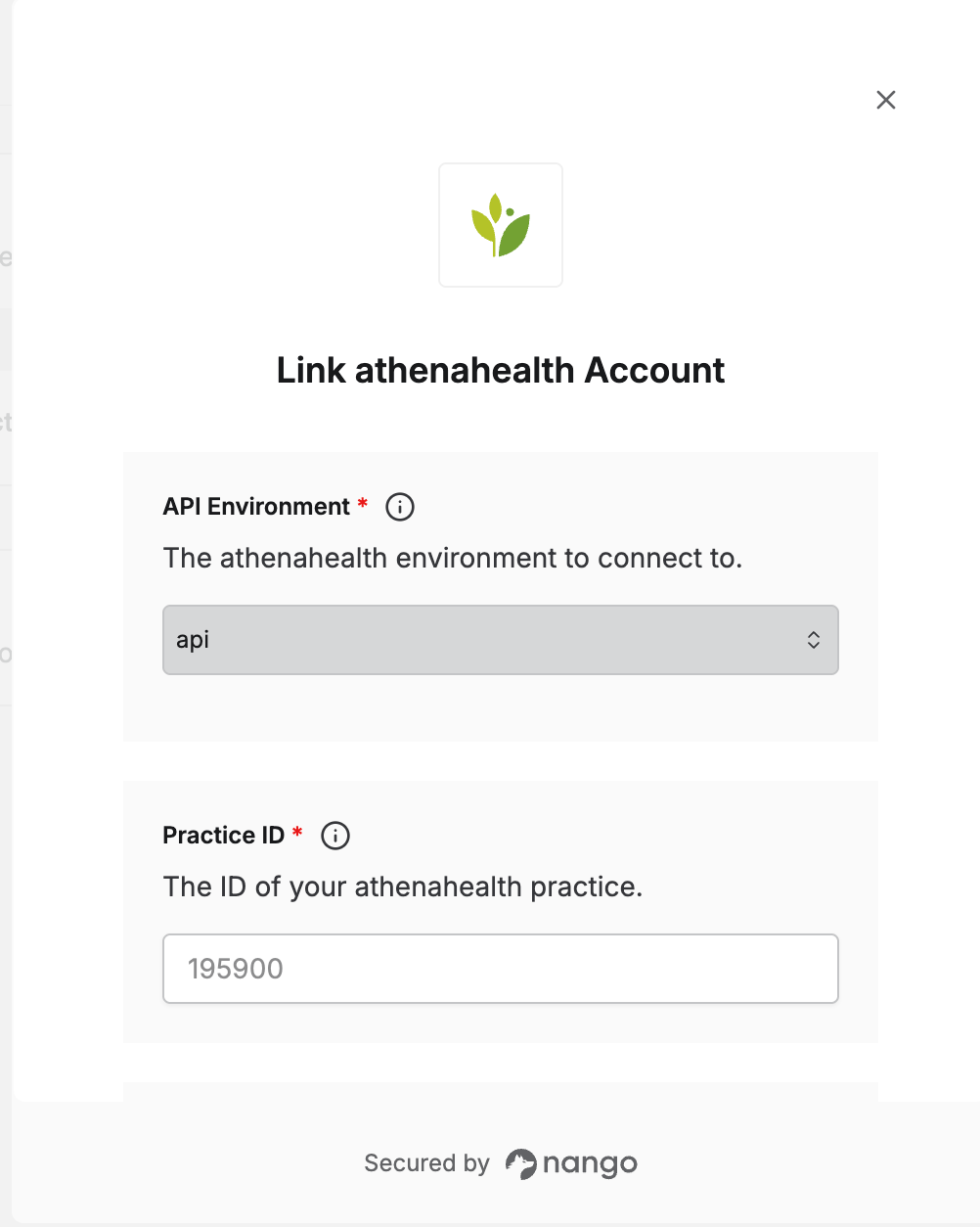
Once you have your **Client ID**, **Client Secret**, chosen environment, and **Practice ID**:
1. Open the form where you need to authenticate with athenahealth.
2. Select `api` or `api.preview` for **API Environment**.
3. Enter your **Client ID** and **Client Secret** in their respective fields.
4. Enter your **Practice ID**.
5. Submit the form, and you should be successfully authenticated.
 You are now connected to athenahealth.