> ## Documentation Index
> Fetch the complete documentation index at: https://nango.dev/docs/llms.txt
> Use this file to discover all available pages before exploring further.
# Apple Calendar - How do I link my account?
## Overview
To authenticate with Apple Calendar (iCloud), you need:
1. **Apple ID** -- your iCloud email address.
2. **App-Specific Password** -- a password generated specifically for CalDAV access. Your regular Apple ID password will not work.
This guide walks you through generating an app-specific password.
### Prerequisites
* An Apple ID with [two-factor authentication](https://support.apple.com/en-us/HT204915) enabled (required to generate app-specific passwords).
* A personal Apple ID. Managed Apple IDs (work/school accounts) may not support app-specific passwords.
### Instructions
#### Step 1: Find your Apple ID
Your Apple ID is the email address you sign in with at [appleid.apple.com](https://appleid.apple.com).
#### Step 2: Generate an app-specific password
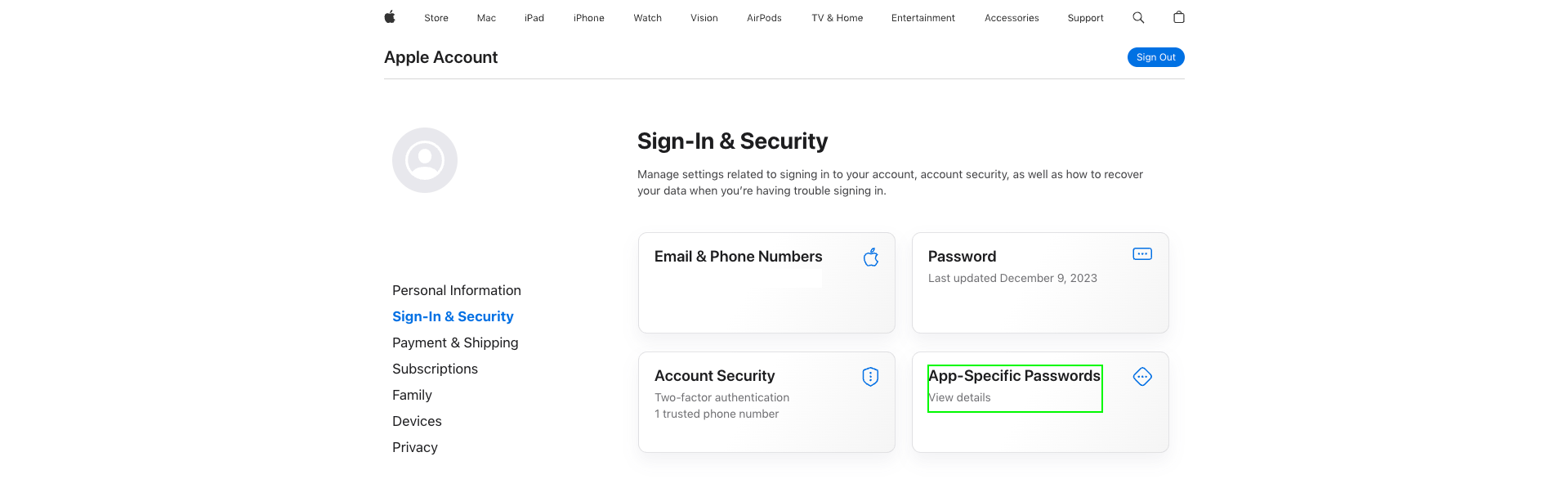
1. Sign in, then go to the [Sign-In & Security](https://account.apple.com/account/manage/section/security) page and select **App-Specific Passwords**.
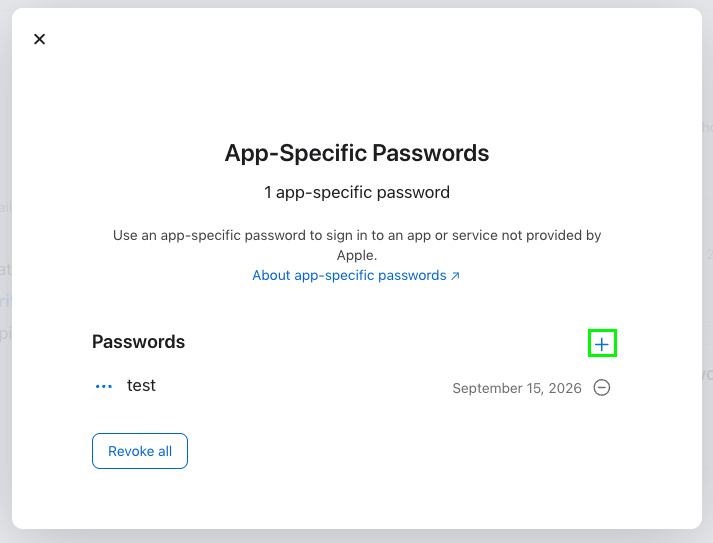
 2. Select **Generate an app-specific password** (or **+** if you already have one), give it a name (e.g. "Nango CalDAV"), and click **Create**.
 3. Apple displays the generated password once. Copy it -- you won't be able to view it again.
Apple only shows the app-specific password once. If you lose it, revoke it and generate a new one.
#### Step 3: Enter credentials in the Connect UI
Once you have your **Apple ID** and **app-specific password**:
1. Open the form where you need to authenticate with Apple Calendar.
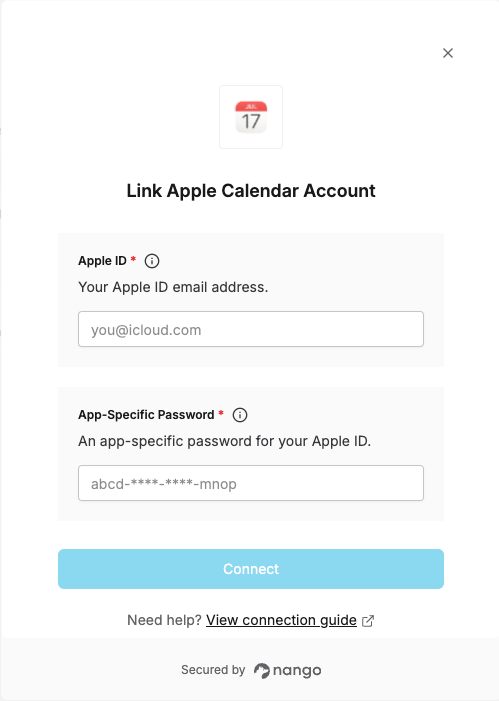
2. Enter your **Apple ID** email address in the **Apple ID** field.
3. Paste the app-specific password (in the `abcd-xxxx-ijkl-xxxx` format Apple generates) into the **App-Specific Password** field.
4. Submit the form to complete authentication.
3. Apple displays the generated password once. Copy it -- you won't be able to view it again.
Apple only shows the app-specific password once. If you lose it, revoke it and generate a new one.
#### Step 3: Enter credentials in the Connect UI
Once you have your **Apple ID** and **app-specific password**:
1. Open the form where you need to authenticate with Apple Calendar.
2. Enter your **Apple ID** email address in the **Apple ID** field.
3. Paste the app-specific password (in the `abcd-xxxx-ijkl-xxxx` format Apple generates) into the **App-Specific Password** field.
4. Submit the form to complete authentication.
 You are now connected to Apple Calendar.