> ## Documentation Index
> Fetch the complete documentation index at: https://nango.dev/docs/llms.txt
> Use this file to discover all available pages before exploring further.
# Apple Business Manager - How do I link my account?
# Overview
To authenticate with Apple Business Manager, you will need:
1. **Client ID** – Returned when you upload your public key in Apple Business Manager.
2. **Key ID** – Returned when you upload your public key in Apple Business Manager.
3. **Private Key** – The EC private key (PEM format) you generate to sign the client assertion JWT.
This guide will walk you through generating your **Private Key** and finding your **Client ID** and **Key ID** in Apple Business Manager.
### Prerequisites:
* An [Apple Business Manager](https://business.apple.com) account with the **Administrator** role.
### Instructions:
#### Step 1: Create an API account and generate a private key
Apple Business Manager authenticates using a P-256 elliptic curve private key that you generate — it is never stored by Apple.
1. Sign in to **Apple Business Manager** as a user with the **Administrator** role.
2. Select your name at the bottom of the sidebar, then select **Preferences** → **API**.
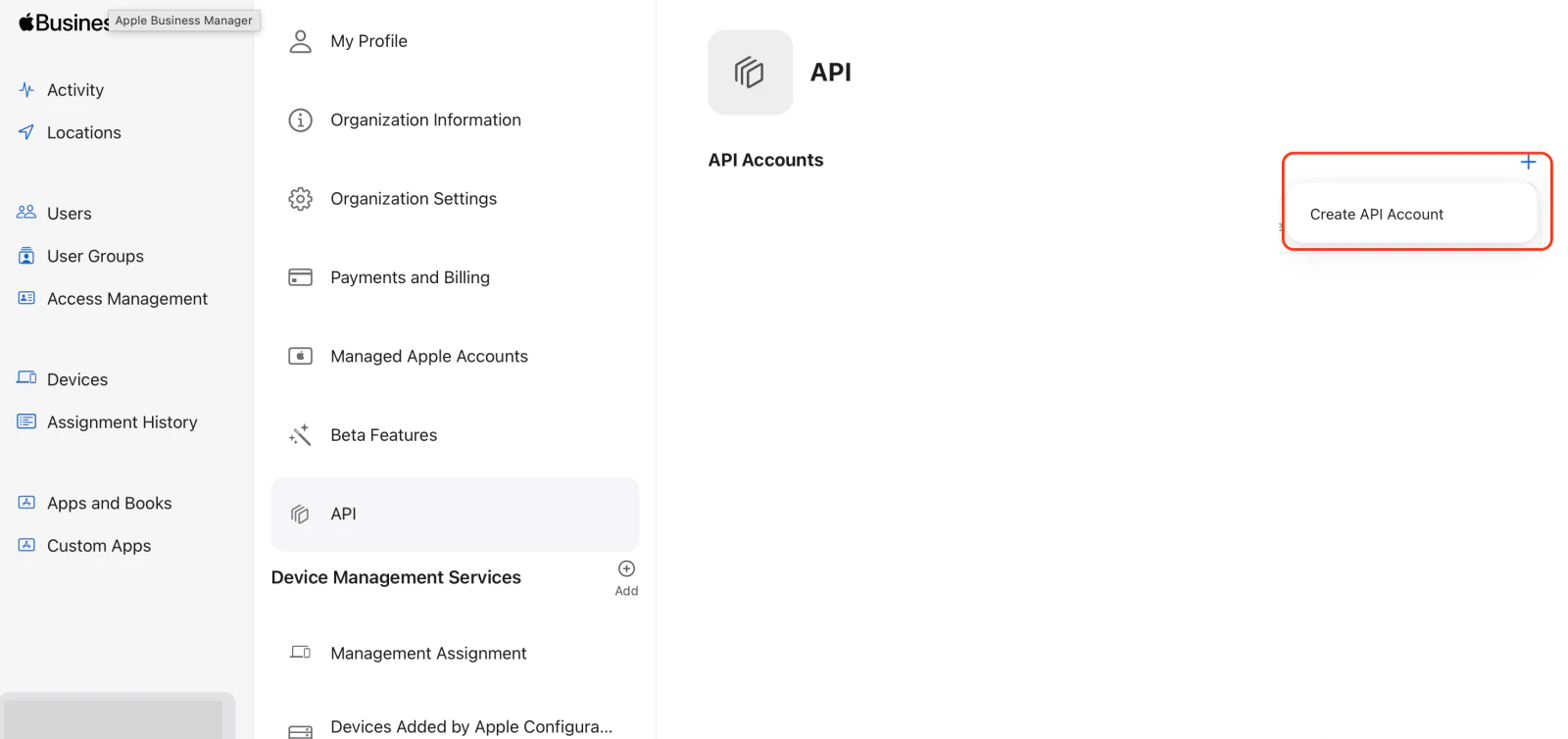
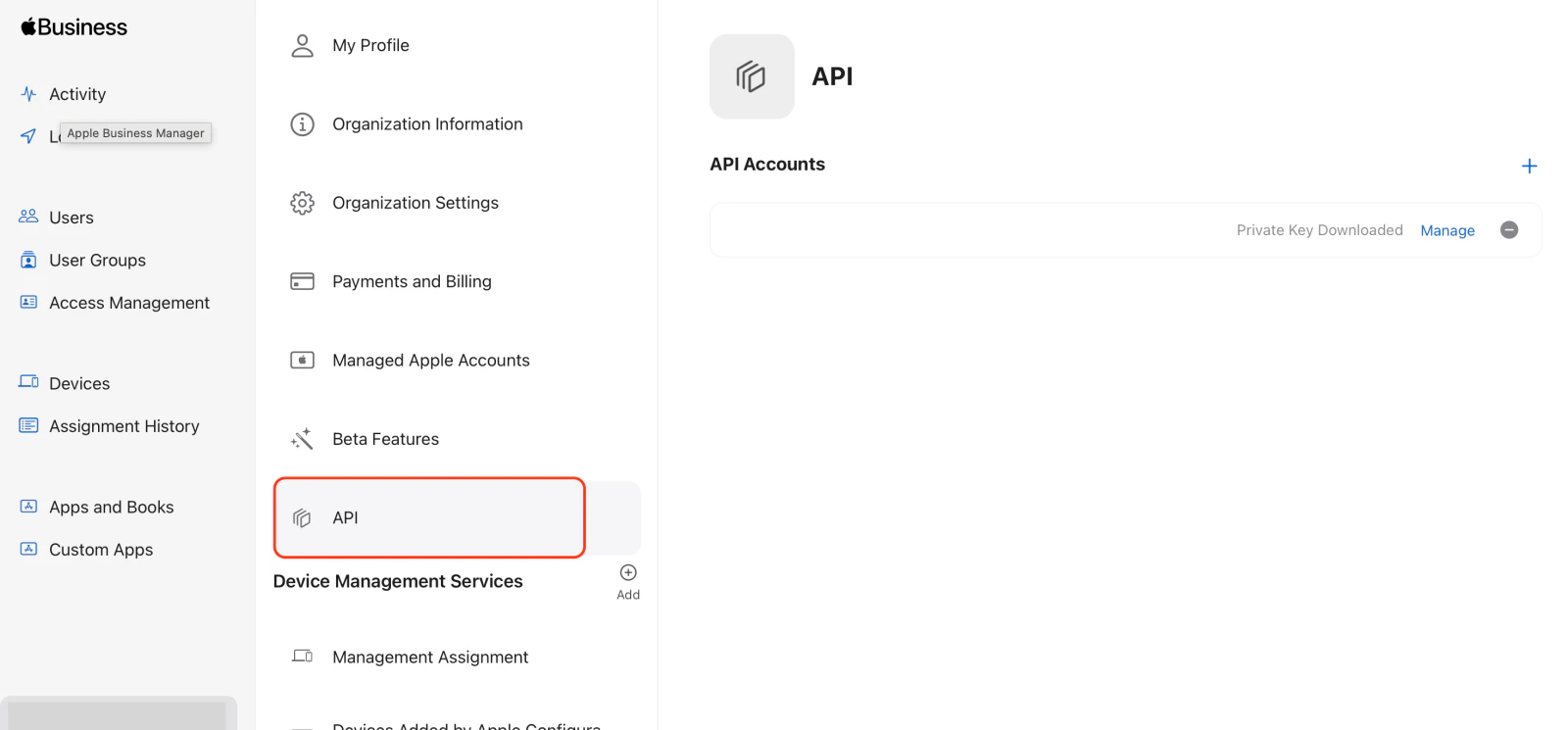 3. Click **Create API Account**.
 4. Enter an account label, click **Create**, then click **Generate Private Key** and save the file.
The `.pem` file automatically downloads to your browser's download location. This key is used to sign JWTs for authentication.
#### Step 2: Note your credentials
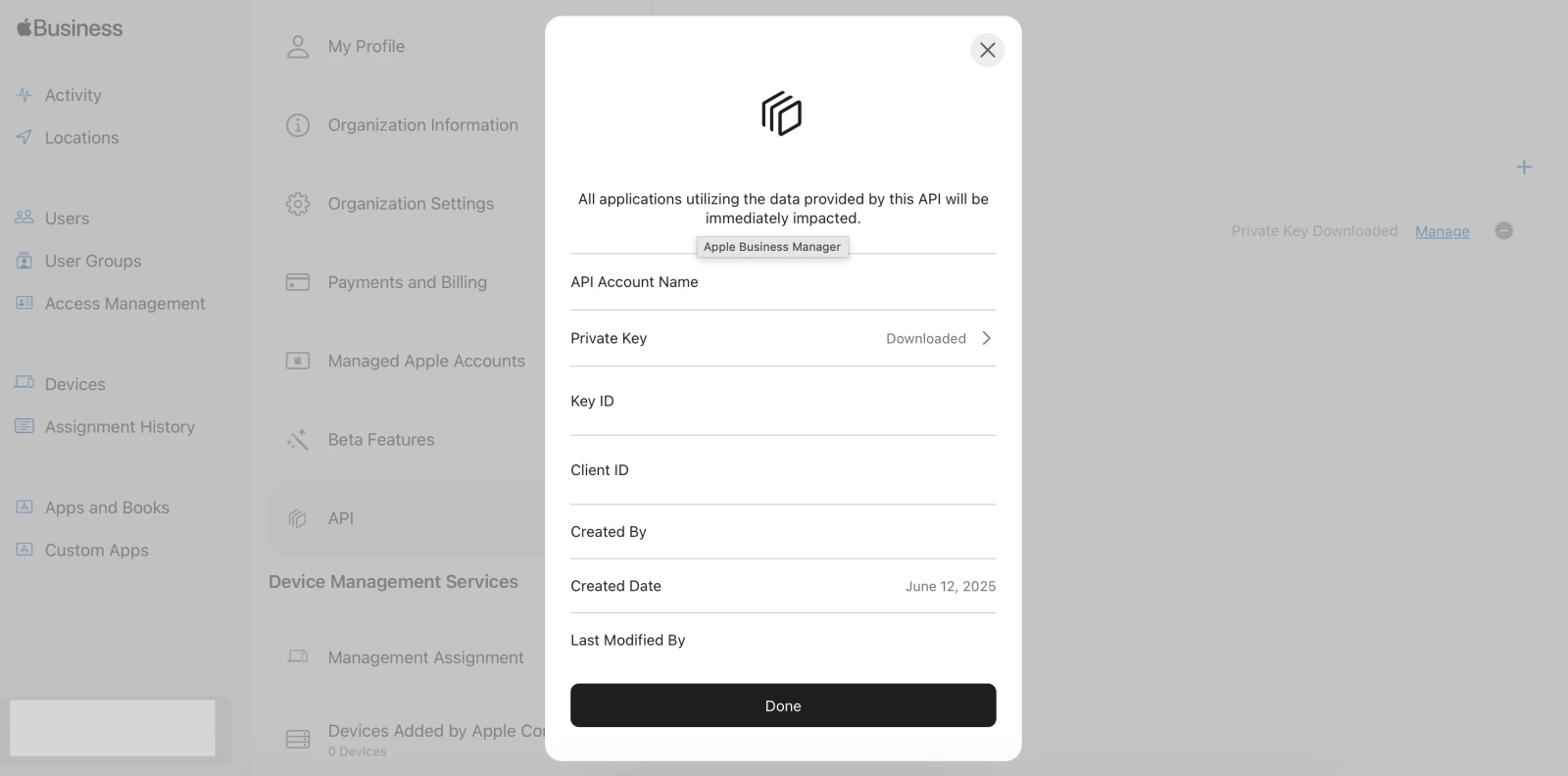
After generating the private key, Apple Business Manager displays your API account details. Select **Manage** to view:
* **Client ID** – A unique identifier for your API account, used in JWT claims.
* **Key ID** – The identifier for the key pair, used in the JWT header.
Keep these values available for the next step.
4. Enter an account label, click **Create**, then click **Generate Private Key** and save the file.
The `.pem` file automatically downloads to your browser's download location. This key is used to sign JWTs for authentication.
#### Step 2: Note your credentials
After generating the private key, Apple Business Manager displays your API account details. Select **Manage** to view:
* **Client ID** – A unique identifier for your API account, used in JWT claims.
* **Key ID** – The identifier for the key pair, used in the JWT header.
Keep these values available for the next step.
 #### Step 3: Enter credentials in Nango
Once you have your **Client ID**, **Key ID**, and **Private Key**:
1. Open the form where you need to authenticate with Apple Business Manager.
2. Enter your **Client ID**, **Key ID**, and **Private Key** in their respective fields.
3. Submit the form to complete authentication.
#### Step 3: Enter credentials in Nango
Once you have your **Client ID**, **Key ID**, and **Private Key**:
1. Open the form where you need to authenticate with Apple Business Manager.
2. Enter your **Client ID**, **Key ID**, and **Private Key** in their respective fields.
3. Submit the form to complete authentication.
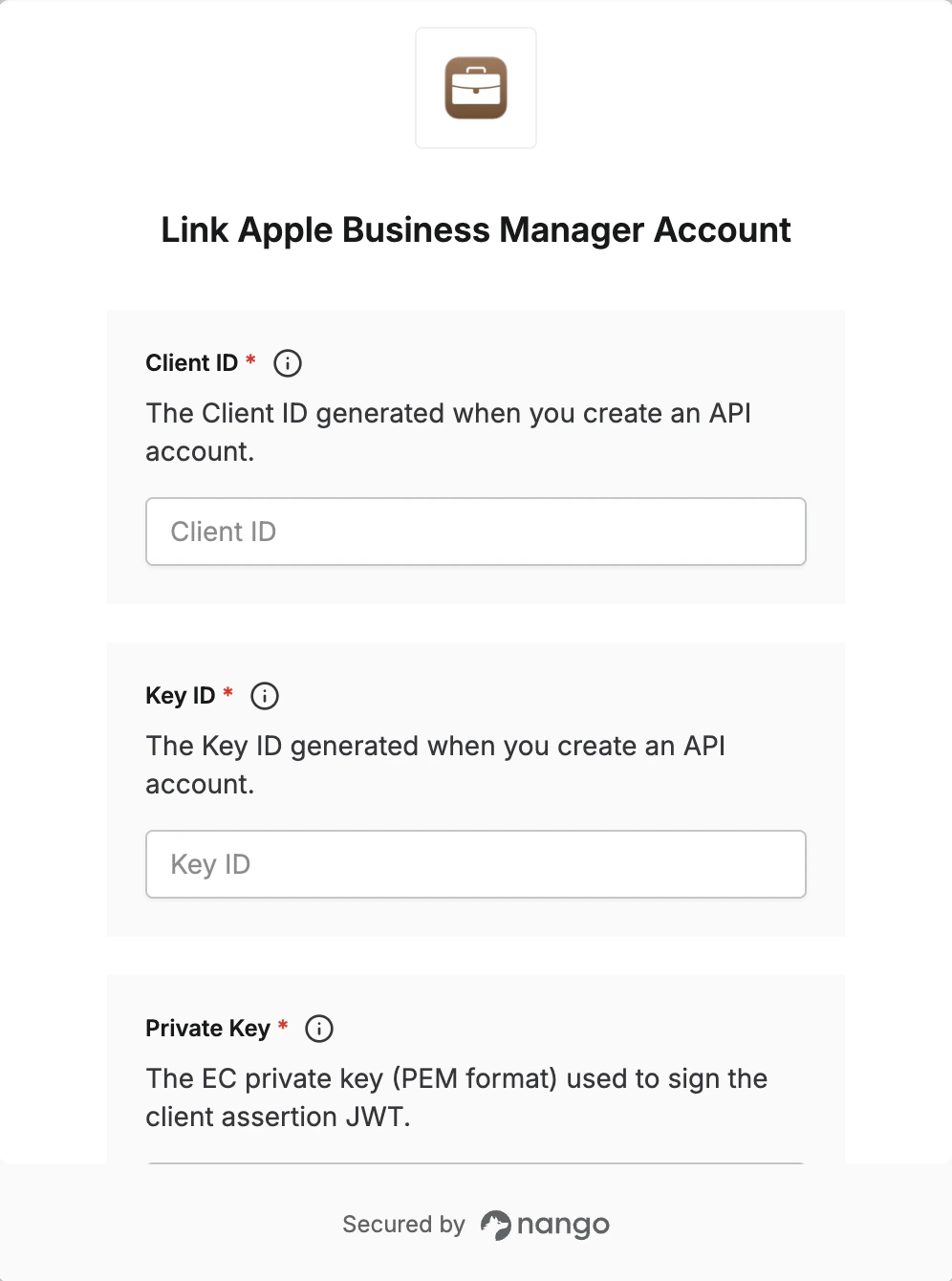 You are now connected to Apple Business Manager.