> ## Documentation Index
> Fetch the complete documentation index at: https://nango.dev/docs/llms.txt
> Use this file to discover all available pages before exploring further.
# Apollo - How do I link my account?
# Overview
To authenticate with Apollo, you need:
1. **API key** - A key that grants Nango permission to interact with Apollo's APIs resources and services.
This guide will walk you through obtaining these credentials within Apollo.
### Prerequisites:
* You must have an account with Apollo.
### Instructions:
#### Step 1: Finding Your API Key
1. Log in to your [Apollo](https://app.apollo.io/#/login) account.
2. Navigate to **Settings** > [Integrations](https://app.apollo.io/#/settings/integrations).
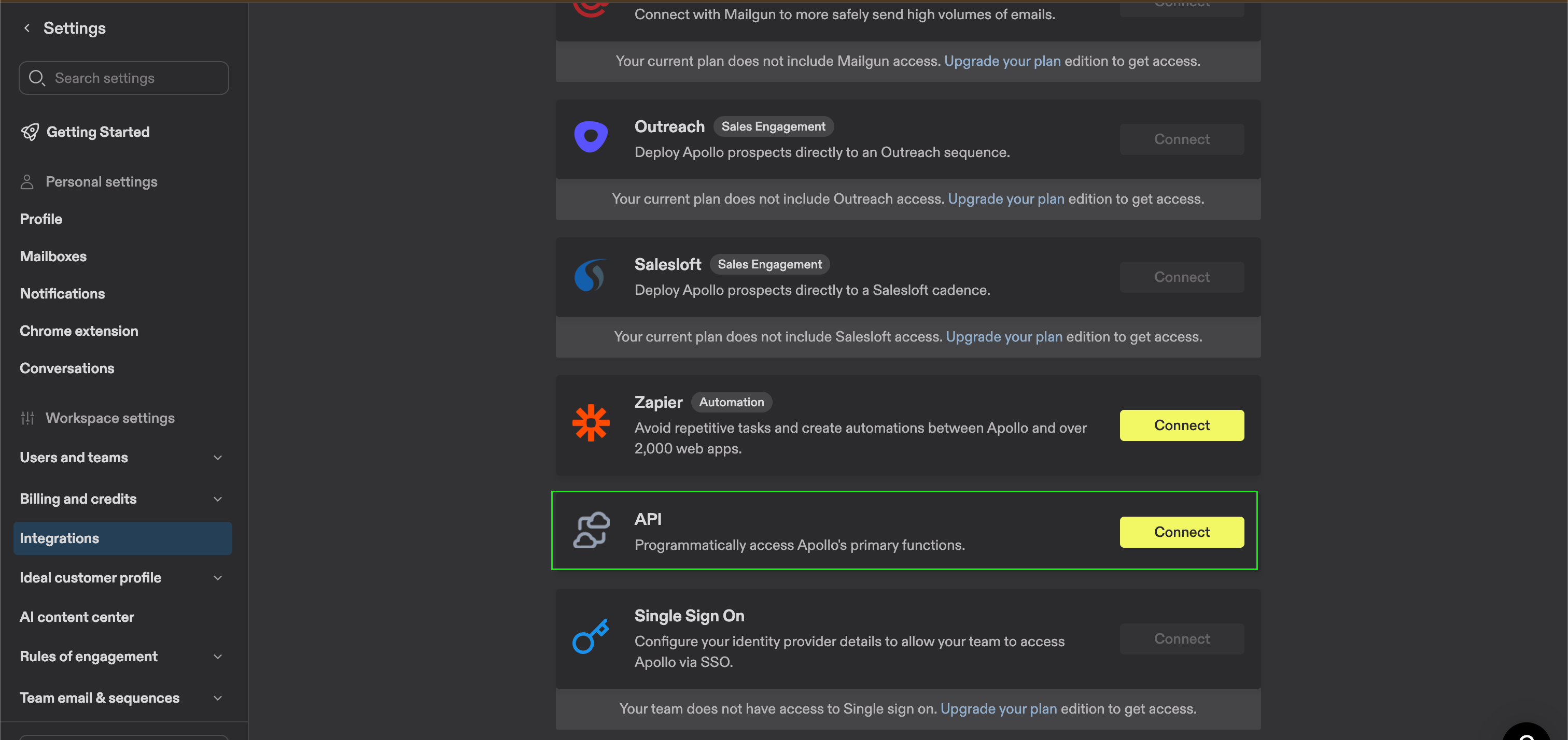
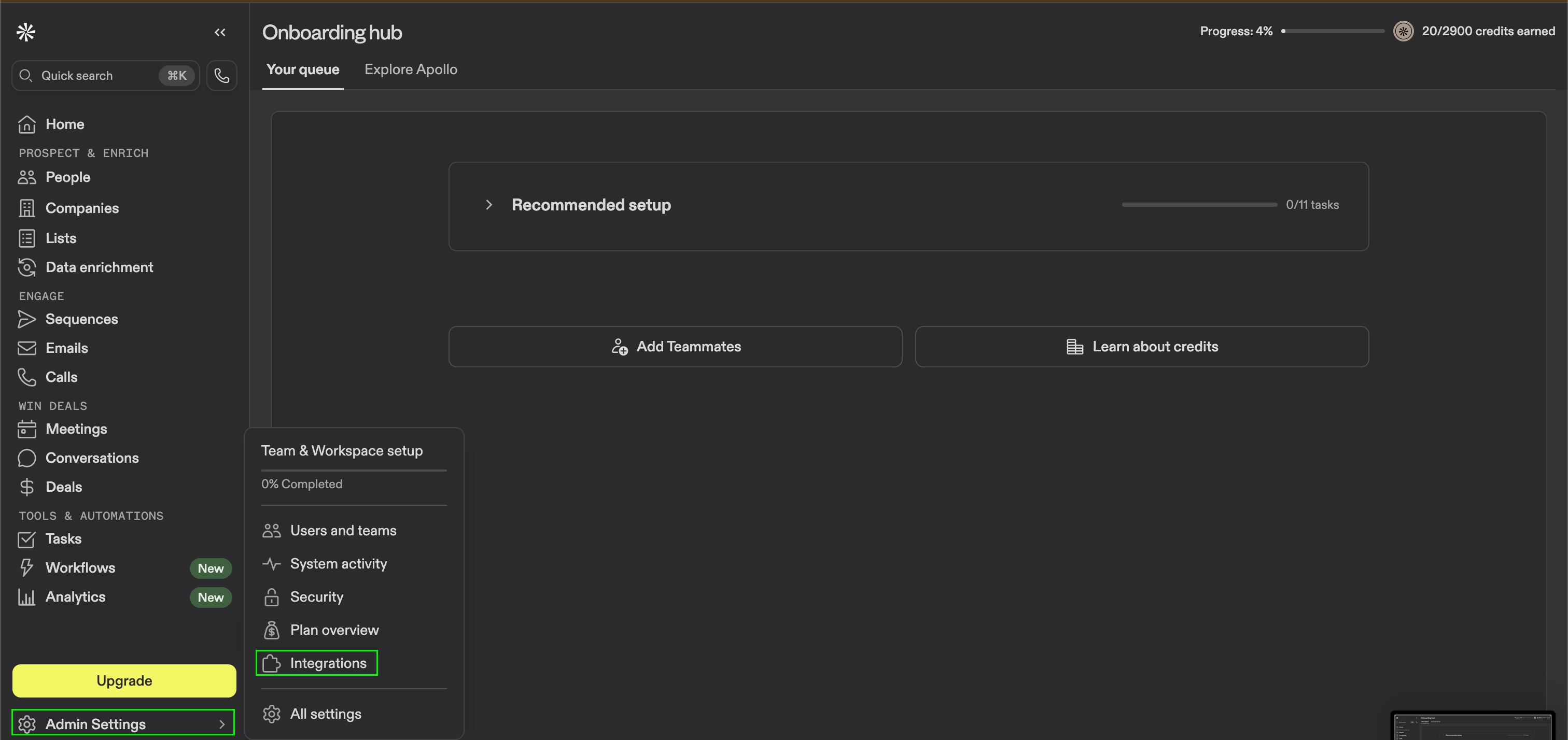 3. Find the **API** option and click **Connect**.
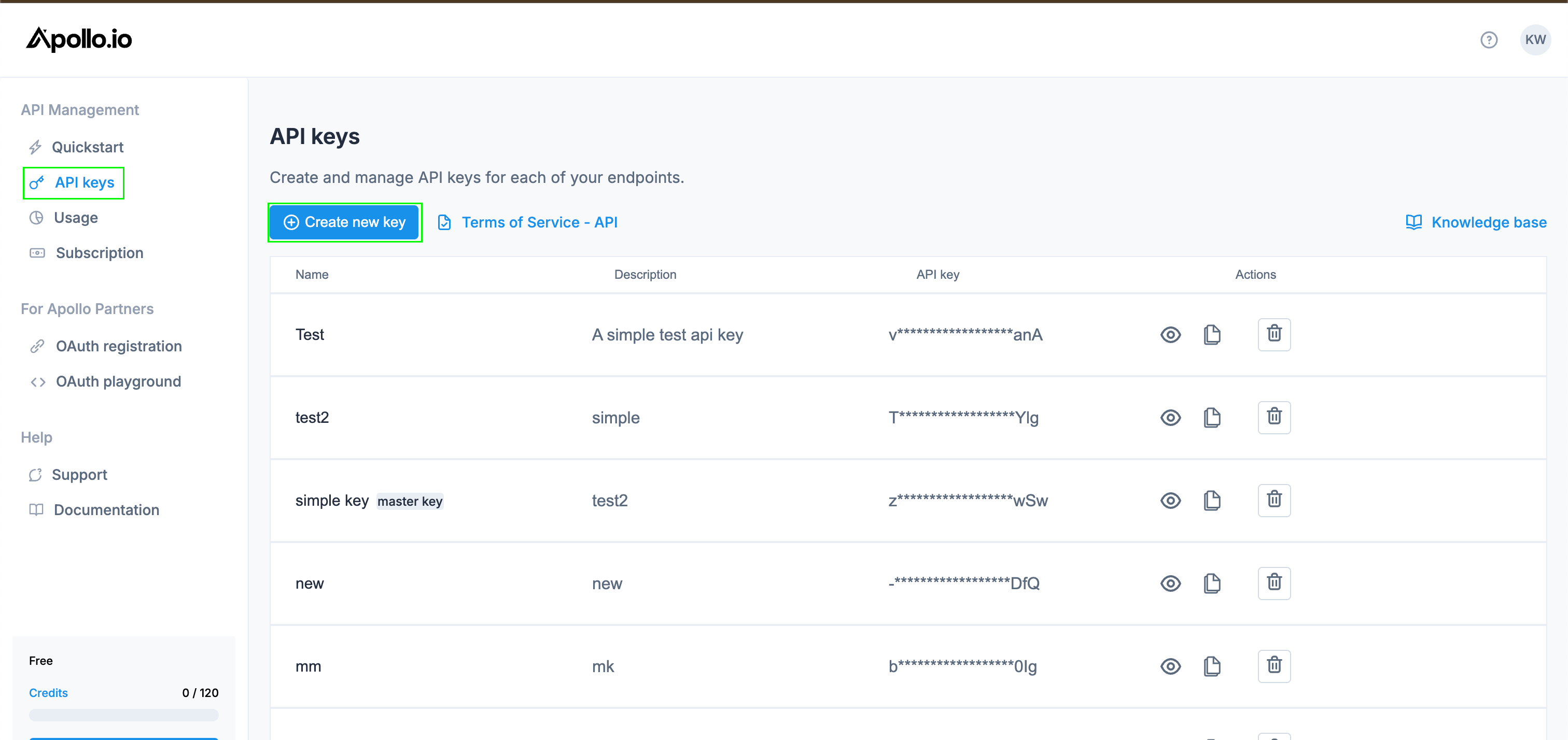
 4. Click **API keys** to view or create new **API keys**. Then, click **Create new key**.
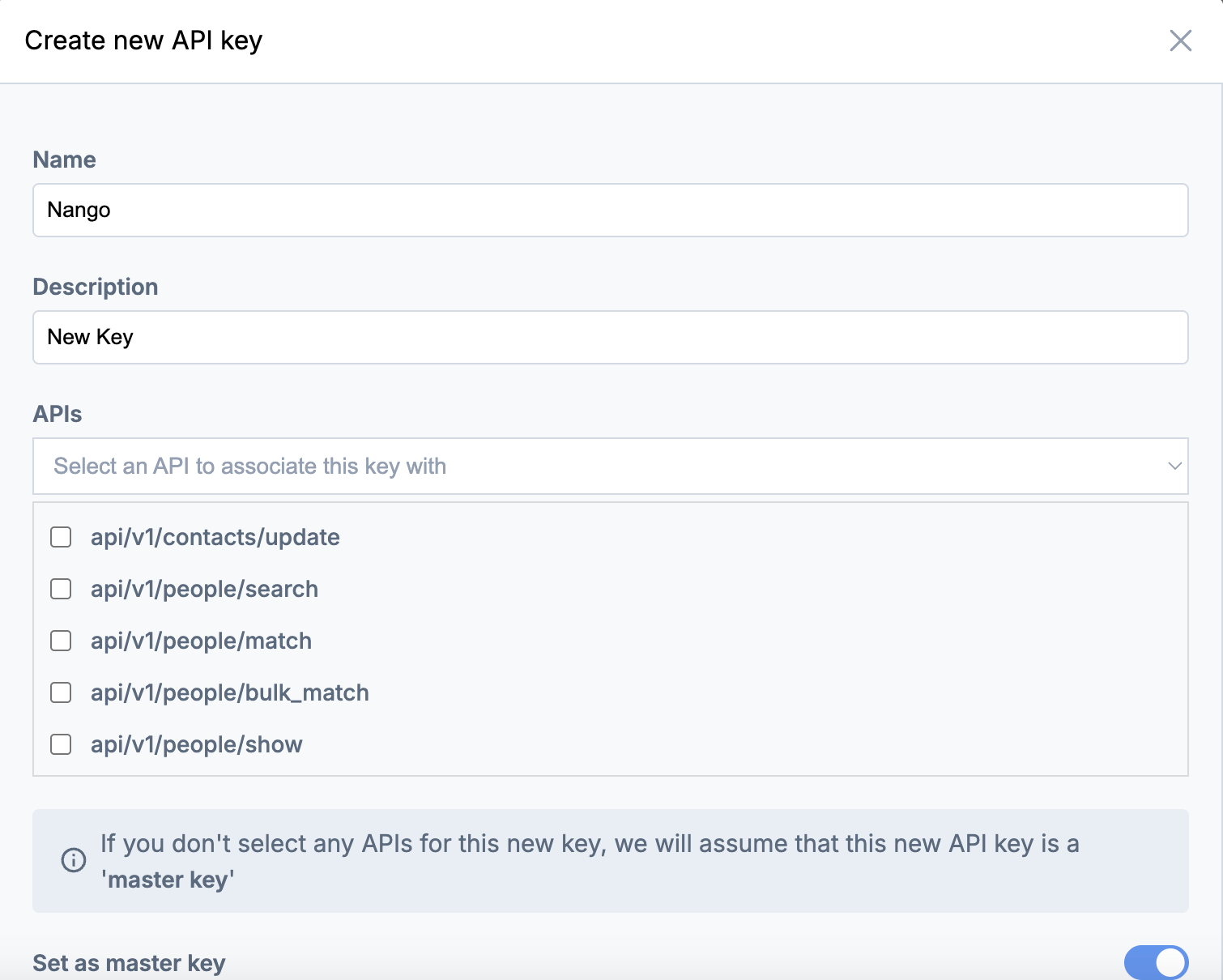
 5. **Name** your **API Key** and add a **Description**. To scope your key appropriately, click the checkbox for each Apollo API endpoint you need to access.
 6. Click **Create API key**.
7. On the **API Keys** page, click on the reveal button next to your newly generated API key to reveal it.
6. Click **Create API key**.
7. On the **API Keys** page, click on the reveal button next to your newly generated API key to reveal it.
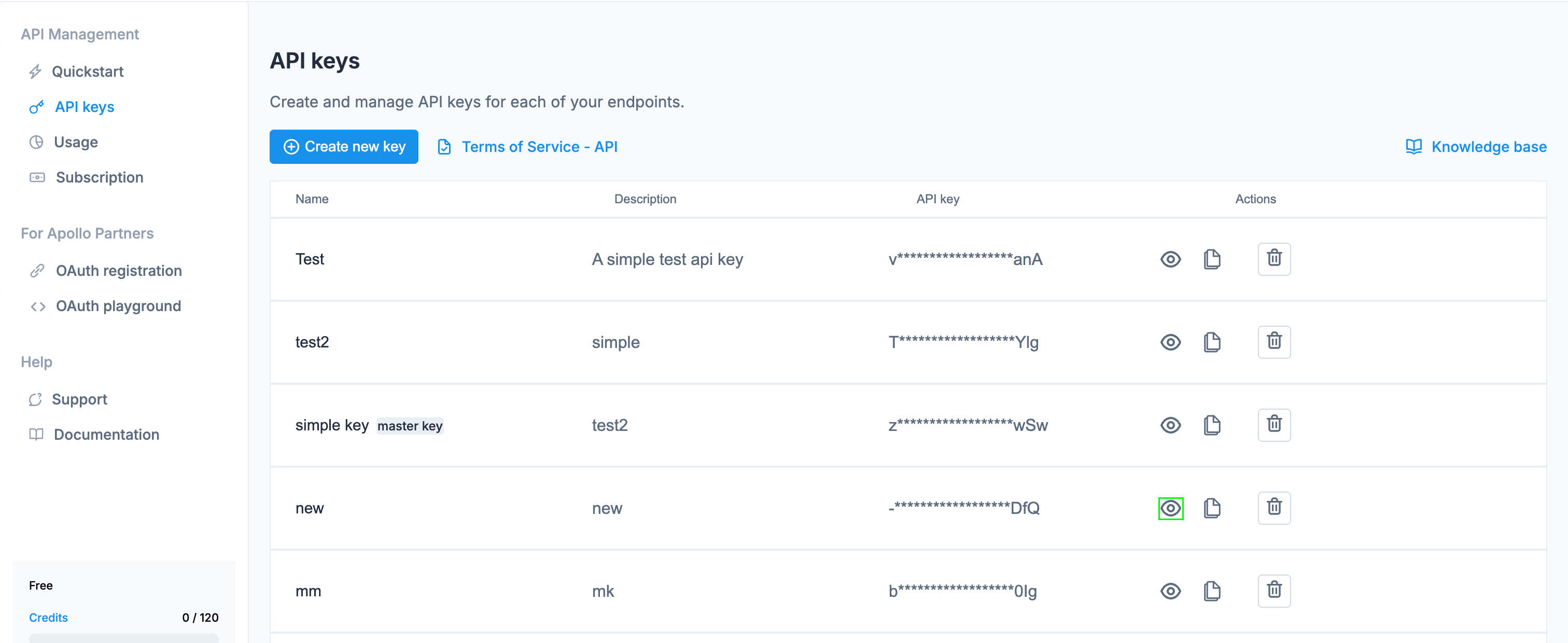 To access all endpoints that are available with your Apollo plan, set your key to be a master key by toggling on the **Set as master key** slider. Certain endpoints such as [Get a List of Users](https://docs.apollo.io/docs/get-a-list-of-users) are only accessible when using a master API key.
#### Step 2: Enter credentials in the Connect UI
Once you have your **API Key**:
1. Open the form where you need to authenticate with Apollo.
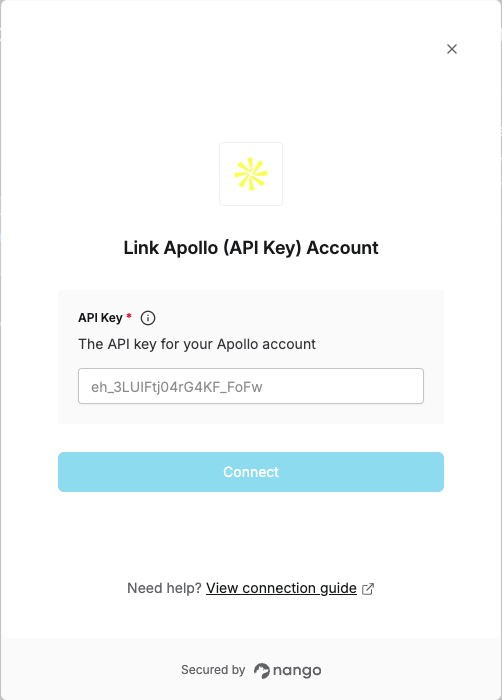
2. Enter your **API Key** in its respective field.
3. Submit the form, and you should be successfully authenticated.
To access all endpoints that are available with your Apollo plan, set your key to be a master key by toggling on the **Set as master key** slider. Certain endpoints such as [Get a List of Users](https://docs.apollo.io/docs/get-a-list-of-users) are only accessible when using a master API key.
#### Step 2: Enter credentials in the Connect UI
Once you have your **API Key**:
1. Open the form where you need to authenticate with Apollo.
2. Enter your **API Key** in its respective field.
3. Submit the form, and you should be successfully authenticated.
 You are now connected to Apollo.