> ## Documentation Index
> Fetch the complete documentation index at: https://nango.dev/docs/llms.txt
> Use this file to discover all available pages before exploring further.
# Anvil - How do I link my account?
# Overview
To authenticate with Anvil, you will need:
1. **API Key** - Your Anvil organization API key from the Organization Settings page.
This guide will walk you through finding your **API key**.
### Prerequisites
* You must have an Anvil account. [Sign up here](https://app.useanvil.com/user/signup) if you don't have one.
### Instructions
#### Step 1: Finding your API key
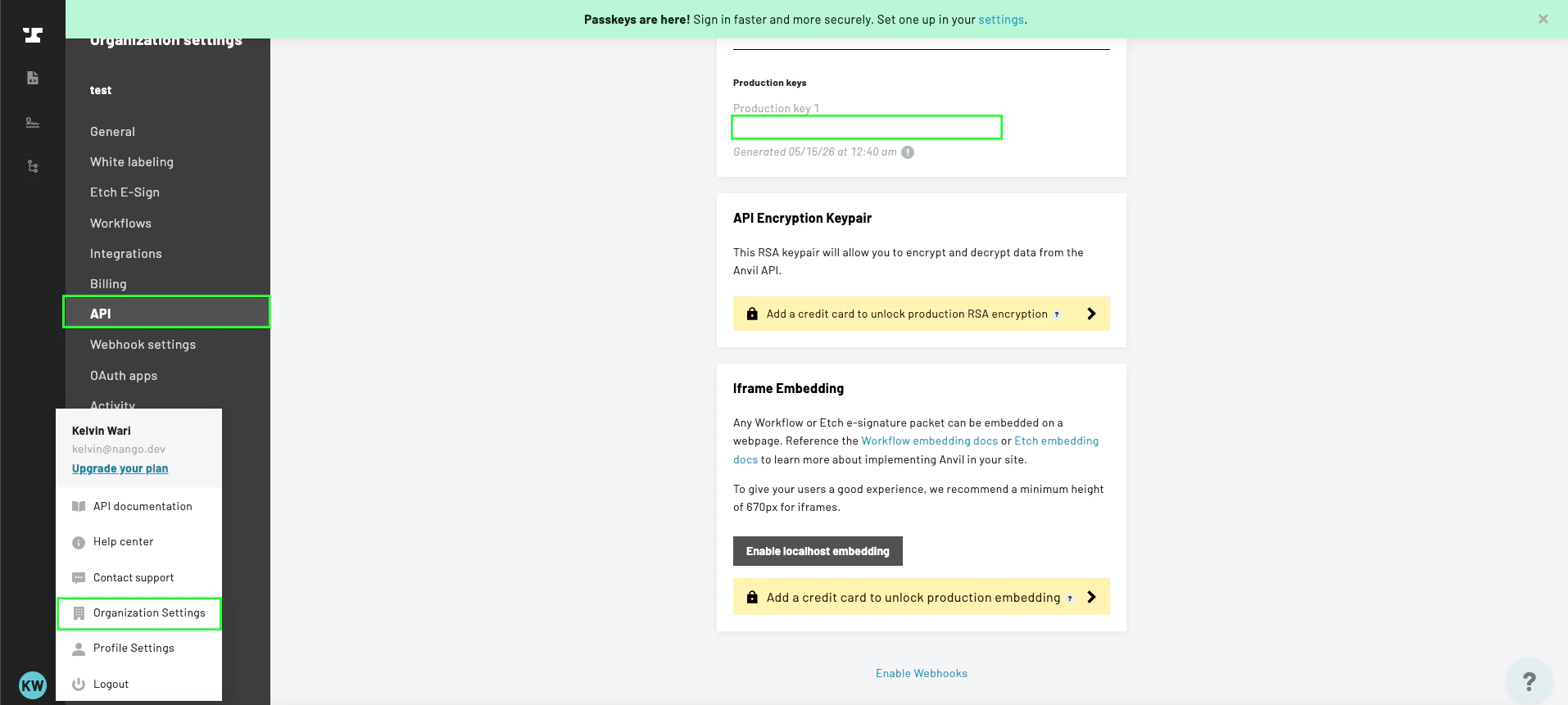
1. Log in to your [Anvil account](https://app.useanvil.com), click your profile, then navigate to **Organization Settings** -> **API**.
2. You will see two keys: a **development key** and a **production key**.
* Use the **development key** for testing — requests are free but rate-limited and generated PDFs will have a watermark.
* Use the **production key** for live use.
3. Click to copy the key you want to use.
 #### Step 2: Enter your API key in Nango
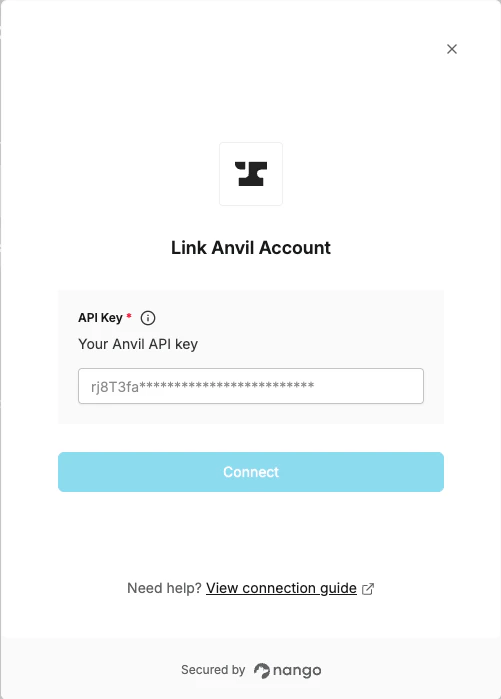
1. Open the form where you need to authenticate with Anvil.
2. Paste your API key into the **API Key** field.
3. Submit the form, and you should be successfully authenticated.
#### Step 2: Enter your API key in Nango
1. Open the form where you need to authenticate with Anvil.
2. Paste your API key into the **API Key** field.
3. Submit the form, and you should be successfully authenticated.
 You are now connected to Anvil.