> ## Documentation Index
> Fetch the complete documentation index at: https://nango.dev/docs/llms.txt
> Use this file to discover all available pages before exploring further.
# Amplitude - How do I link my account?
# Overview
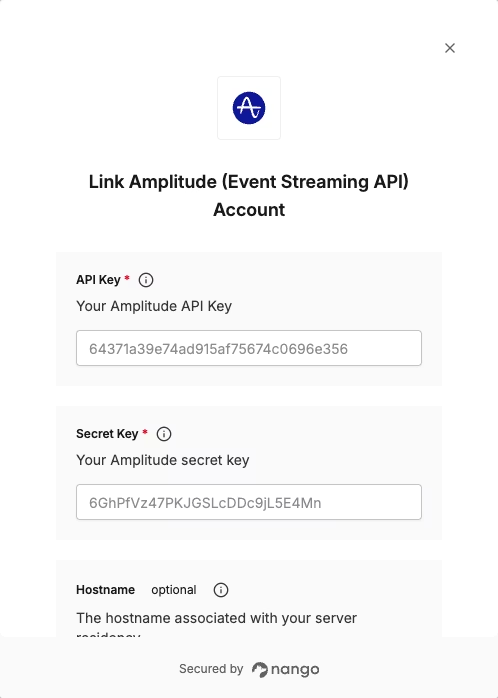
To authenticate with Amplitude, you will need:
1. **API Key** - Your Amplitude API key for authentication.
2. **Secret Key** - Your Amplitude secret key for authentication.
3. **Hostname** - The hostname associated with your server residency.
This guide will walk you through generating your **API Key** and **Secret Key**, and finding your **Hostname** within Amplitude.
### Prerequisites:
* You must have an Amplitude account with access to Organization settings and an Enterprise plan.
### Instructions:
#### Step 1: Generating your Amplitude API Key
1. Sign in to your [Amplitude](https://app.amplitude.com/login/) account.
2. Select **Organization settings** in the upper navigation.
3. Select **API Keys**. In the API Keys tab, you can see the legacy API key. This key was created along with the project.
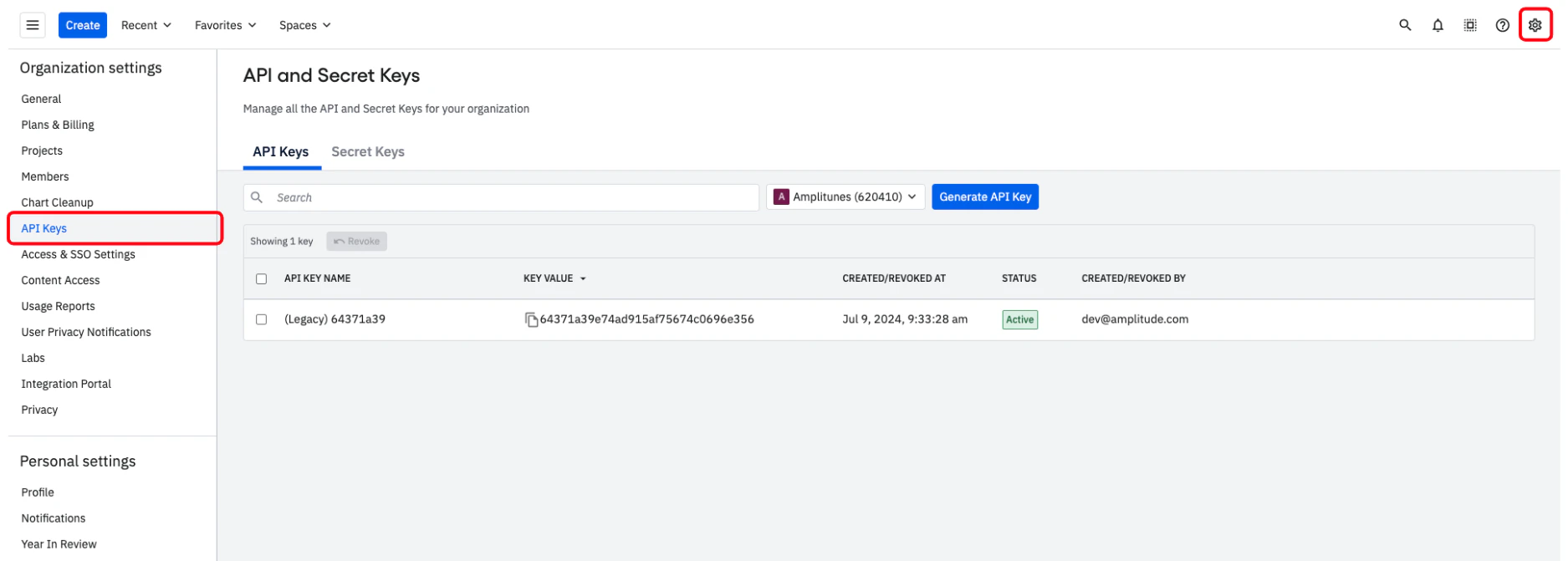 4. Select the project you're interested in.
5. Click **Generate API Key**.
4. Select the project you're interested in.
5. Click **Generate API Key**.
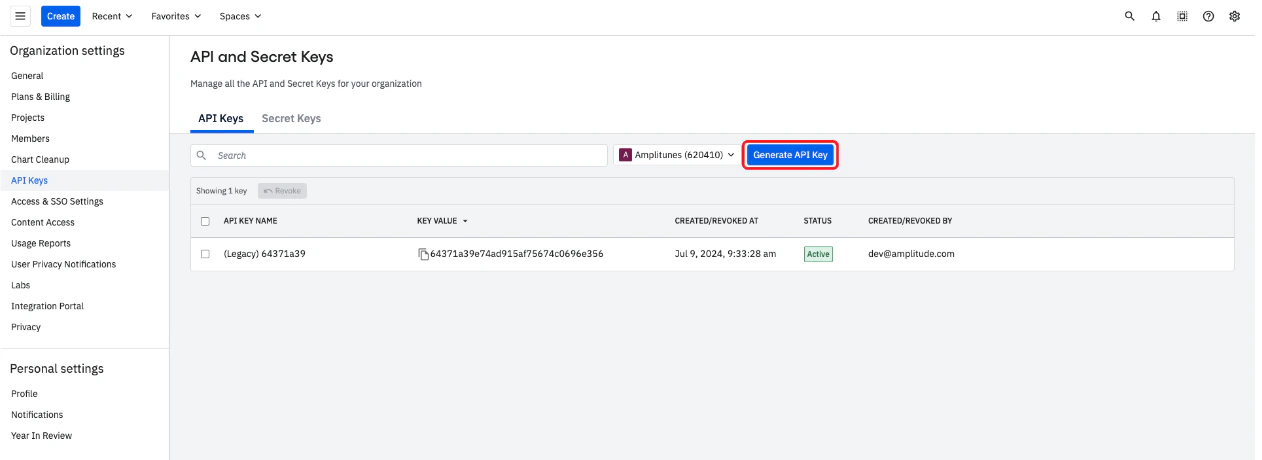 6. Name the **API key** and submit the form to generate it.
#### Step 2: Generating your Amplitude Secret Key
1. In the same **API Keys** section, select the appropriate project.
2. Click **Generate Secret Key**.
6. Name the **API key** and submit the form to generate it.
#### Step 2: Generating your Amplitude Secret Key
1. In the same **API Keys** section, select the appropriate project.
2. Click **Generate Secret Key**.
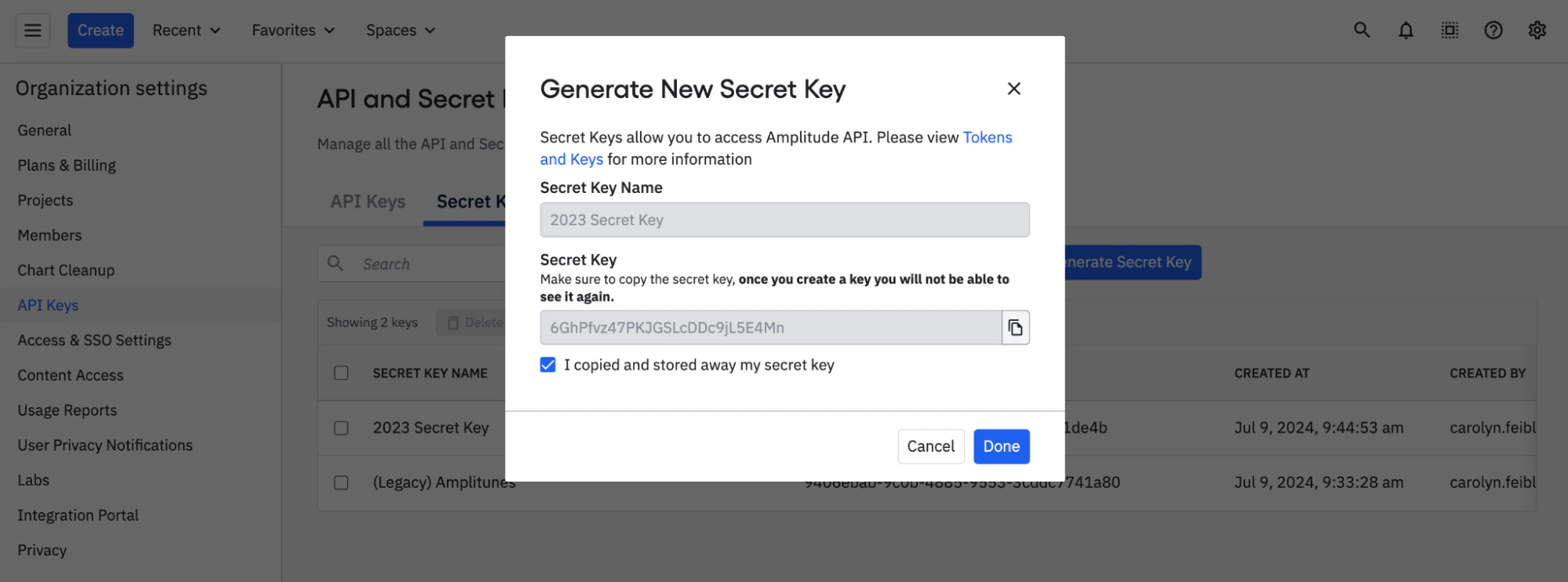
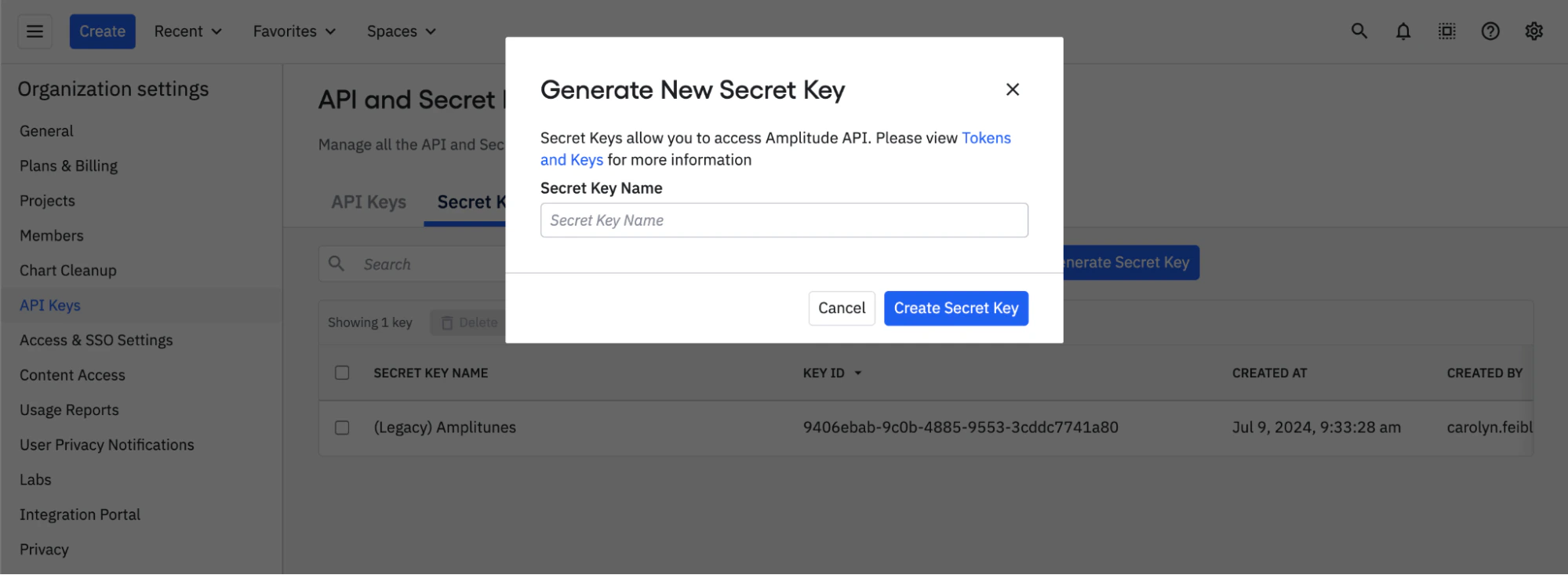 3. Name the secret key and copy it to a secure location.
Amplitude doesn't store secret keys, and there is no way to retrieve them. (The Key ID is a unique identifier for your secret key, but it's not the key itself.)
3. Name the secret key and copy it to a secure location.
Amplitude doesn't store secret keys, and there is no way to retrieve them. (The Key ID is a unique identifier for your secret key, but it's not the key itself.)
 #### Step 3: Finding your Hostname (Optional)
The hostname is optional and depends on your Amplitude server residency. The default is the standard server:
* For **standard server** (default): Use `amplitude.com` or leave blank
* For **EU residency server**: Use `analytics.eu.amplitude.com`
#### Step 4: Enter credentials in the Connect UI
Once you have your **API Key**, **Secret Key**, and **Hostname**:
1. Open the form where you need to authenticate with Amplitude.
2. Enter your **API Key**, **Secret Key** and **Hostname** in their respective fields.
3. Submit the form, and you should be successfully authenticated.
#### Step 3: Finding your Hostname (Optional)
The hostname is optional and depends on your Amplitude server residency. The default is the standard server:
* For **standard server** (default): Use `amplitude.com` or leave blank
* For **EU residency server**: Use `analytics.eu.amplitude.com`
#### Step 4: Enter credentials in the Connect UI
Once you have your **API Key**, **Secret Key**, and **Hostname**:
1. Open the form where you need to authenticate with Amplitude.
2. Enter your **API Key**, **Secret Key** and **Hostname** in their respective fields.
3. Submit the form, and you should be successfully authenticated.
 You are now connected to Amplitude.