> ## Documentation Index
> Fetch the complete documentation index at: https://nango.dev/docs/llms.txt
> Use this file to discover all available pages before exploring further.
# 3CX - How do I link my account?
# Overview
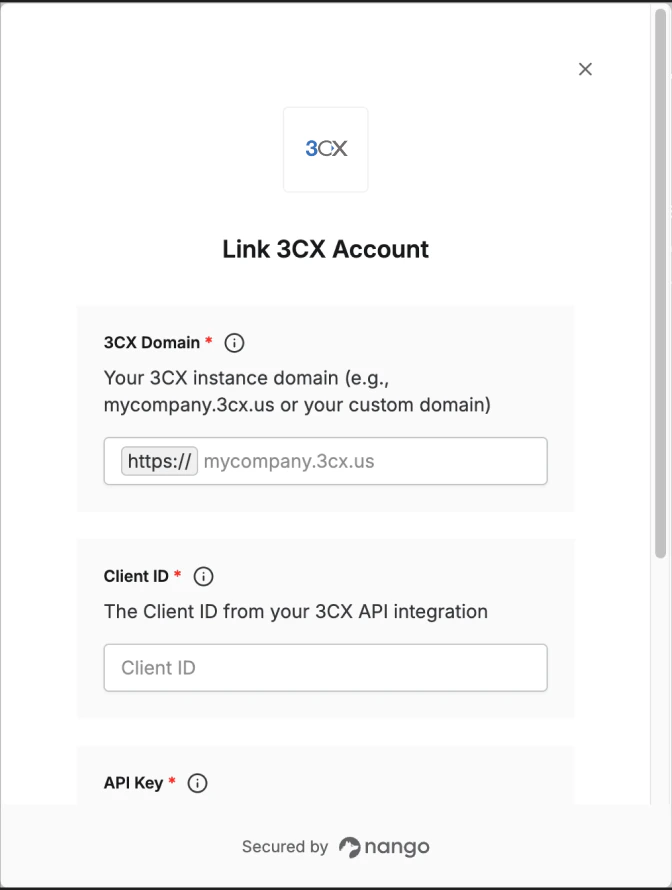
To authenticate with 3CX, you will need:
1. **3CX Domain** - The domain of your 3CX instance.
2. **Client ID** - The Client ID (DN) from your API integration.
3. **API Key** - The API Key generated when creating your API integration.
This guide will walk you through finding your **3CX Domain** and creating an **API integration** to obtain your **Client ID** and **API Key**.
### Prerequisites:
* You must have a 3CX phone system with an **8SC+ Enterprise or AI license**.
* You must have administrator access to the 3CX Admin Console.
### Instructions:
#### Step 1: Find your 3CX domain
1. Log in to your 3CX Web Client or Admin Console.
2. Check the URL in your browser's address bar. Your 3CX URL will typically be in one of these formats:
* `https://mycompany.3cx.us` (3CX hosted)
* `https://mycompany.3cx.de` (3CX hosted, EU)
* `https://pbx.mycompany.com` (self-hosted with custom domain)
3. Your **3CX Domain** is the full domain without the `https://` prefix (e.g., `mycompany.3cx.us`).
#### Step 2: Create API integration
1. Log in to the 3CX Admin Console (Web Client with admin privileges).
2. Navigate to **Integrations** > **API** in the sidebar.
3. Click the **Add** button to create a new API integration.
4. Configure the integration:
* **Client ID**: Enter a unique identifier (this will also be the DN for accessing the route point).
* Check the **3CX Configuration API Access** checkbox to enable Configuration API scope.
* Select the appropriate **Department** and **Role** for your Service Principal:
* "System Owner" or "System Admin" grants system-wide access
* Other roles provide access based on their assigned permissions
5. Click **Save** or **Create**.
6. **Important**: After creating the integration, you will see the **API Key** displayed once. Copy and save this key securely - it will not be shown again.
If you lose your API Key, you will need to delete the API integration and create a new one to generate a new key.
#### Step 3: Enter credentials in the Connect UI
Once you have your **3CX Domain**, **Client ID**, and **API Key**:
1. Open the form where you need to authenticate with 3CX.
2. Enter your **3CX Domain** (e.g., `mycompany.3cx.us`).
3. Enter your **Client ID**.
4. Enter your **API Key**.
5. Submit the form, and you should be successfully authenticated.
 You are now connected to 3CX.