> ## Documentation Index
> Fetch the complete documentation index at: https://nango.dev/docs/llms.txt
> Use this file to discover all available pages before exploring further.
# 1Password (Events API) - How do I link my account?
# Overview
To authenticate with the 1Password Events API, you will need:
1. **Bearer Token** - A token issued from your 1Password Events Reporting integration
2. **Events API Domain** - The regional API domain for your 1Password account
This guide walks you through finding each of these values.
### Prerequisites
* A 1Password Business account with admin access
### Instructions
#### Step 1: Find your Events API domain
Choose the domain that matches your 1Password account region:
| Region | Domain |
| ------ | ---------------------- |
| US | `events.1password.com` |
| Canada | `events.1password.ca` |
| Europe | `events.1password.eu` |
#### Step 2: Generate a bearer token
1. Sign in to your [1Password account](https://my.1password.com).
2. Select **Integrations** in the sidebar, and select **Directory**.
3. In the **Events Reporting** section, choose your SIEM from the list. If your SIEM isn't listed, select **Other**.
 4. Enter a name for the integration, then select **Add Integration**.
 5. Configure your token:
* **Token Name**: A name to identify this token
* **Expires After**: (Optional) 30, 90, or 180 days — defaults to never
* **Events to Report**: Choose which events the token can access (sign-in attempts, item usages, audit events)
5. Configure your token:
* **Token Name**: A name to identify this token
* **Expires After**: (Optional) 30, 90, or 180 days — defaults to never
* **Events to Report**: Choose which events the token can access (sign-in attempts, item usages, audit events)
 6. Select **Issue Token**.
7. On the **Save your token** page, your token is displayed. Copy it now — it will not be shown again.
6. Select **Issue Token**.
7. On the **Save your token** page, your token is displayed. Copy it now — it will not be shown again.
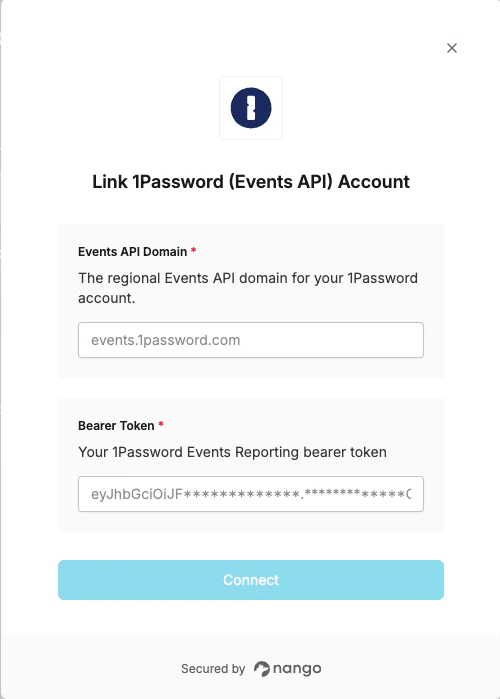
 #### Step 3: Enter credentials in the Connect UI
1. Open the form where you need to authenticate with 1Password.
2. Enter your **Bearer Token** and **Events API Domain** in their respective fields.
3. Submit the form to connect your account.
#### Step 3: Enter credentials in the Connect UI
1. Open the form where you need to authenticate with 1Password.
2. Enter your **Bearer Token** and **Events API Domain** in their respective fields.
3. Submit the form to connect your account.
 You are now connected to the 1Password Events API.
***
You are now connected to the 1Password Events API.
***